In the previous steps we learned how to create a calendar and appointments on Computer A. Now see how this calendar can be used by an employee working on another machine - Computer B.
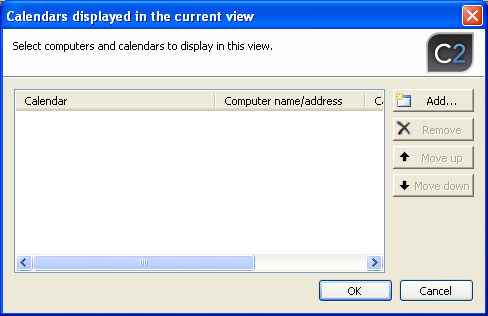
After installing and running CodeTwo NetCalendars on Computer B, an empty dialog box will display. To add on Computer B the calendar that is located on Computer A, choose from View menu Add/Remove Calendars. A list of calendars added to the current view will appear - in this case it is blank (Fig.1).
|
| Fig.1. Dialog box including calendars in the current view. |
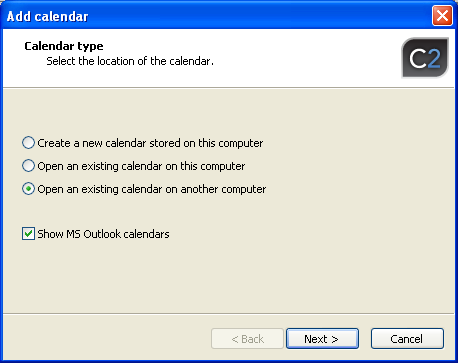
After clicking the Add button, an already familiar dialog box will pop up where the calendar type that we want to add to the view is selected (Fig.2).
|
| Fig.2. Selection of calendar type to display. |
Now we need to choose Open an existing calendar on another computer. If Show MS Outlook Calendars option is checked, it becomes possible to open in CodeTwo NetCalendars personal calendars kept in Outlook. This gives us an opportunity to share and edit Outlook calendars between multiple users in the network located on several machines without the pricy Exchange Server.
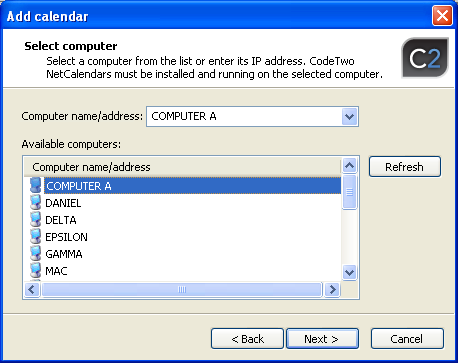
On clicking Next another dialog box (Fig.3) opens where you select the computer name where the sought calendar is hosted.
|
| Fig.3. Selection of a remote machine hosting the calendar. |
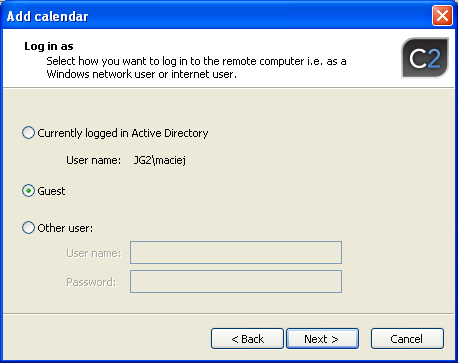
We choose Computer A and click Next. The dialog box (Fig.4) that opens is used to enter the mode of logging to the remote machine.
|
| Fig.4. Selecting the mode of logging to another machine. |
If we work in Active Directory environment, we can choose Currently logged in Active Directory user option. If we are connecting to the machine via the Internet or if the local machine is not included in Active Directory environment, choose Guest option to connect anonymously, or Other user option if the calendar owner created a special account for you. Since we did not create any special account on machine A and the machine is not included in Active Directory environment, we will choose Guest access.
More about access rights to calendars.
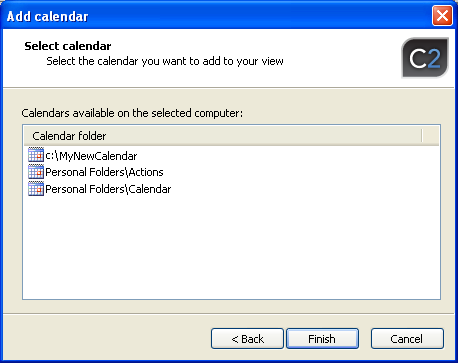
After clicking Next, a dialog box will display listing all available calendars on Computer A (Fig.5).
|
| Fig.5. A list of calendars available on the remote computer. |
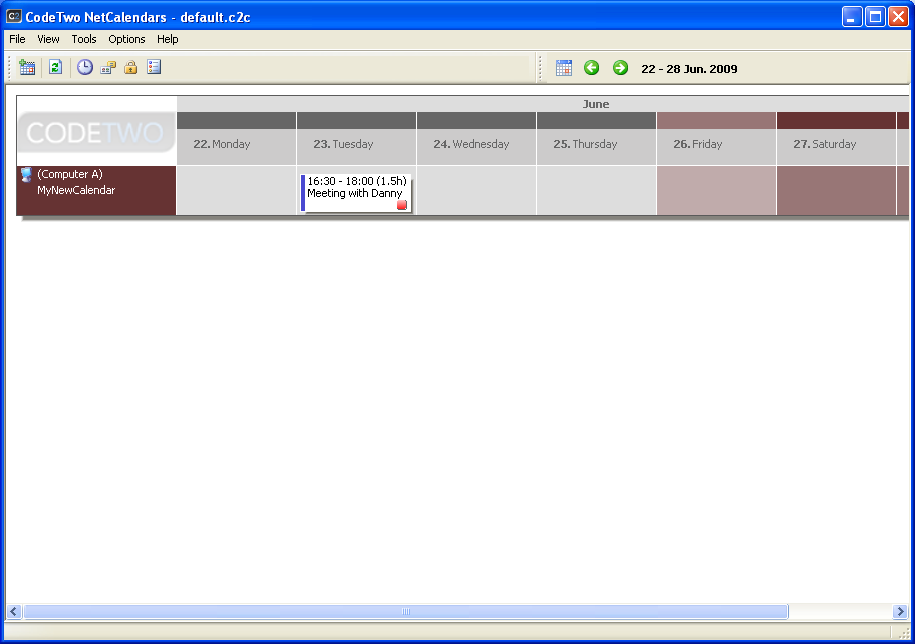
You can see that the calendar we created named 'MyNewCalendar' is visible as are two more that are located in Microsoft Outlook. Highlight MyNewCalendar and click Finish. The calendar will be added to the view and the data added to it on Machine A will soon be synchronized too (Fig. 6).
|
| Fig.6. The view shows the remote calendar (click to enlarge). |
The actions that can be taken on other user's calendar (reading, creating and editing items) are governed by the access rights given by the host user. Working on the remote calendar is identical to working on a local calendar even if a remote calendar where the calendar resides locally is disconnected. With the disconnected host, the changes made to the calendar will sync once the host computer reconnects.
 Back
Back
