|
•
|
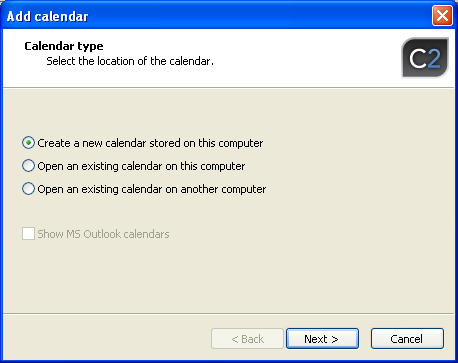
New calendar on this computer - creates a new calendar on the local computer saved
as a 'caldb' file and adds it to the view.
|
|
•
|
Open an existing calendar on this machine - displays a list of all available calendars
on the local machine and lets you add them to the view. The calendars that are displayed
include the ones created in CodeTwo NetCalendars as well as those from Microsoft
Outlook.
|
|
•
|
Open an existing calendar on another machine - displays a list of all calendars
available on the selected remote machine available in the network or the Internet
that can be added to the view. The calendars that are displayed include the ones
created in CodeTwo NetCalendars as well as those from Microsoft Outlook.
|
|
1.
|
On the Add calendar dialog box choose Create new calendar stored on this computer
option and click Next.
|
|
2.
|
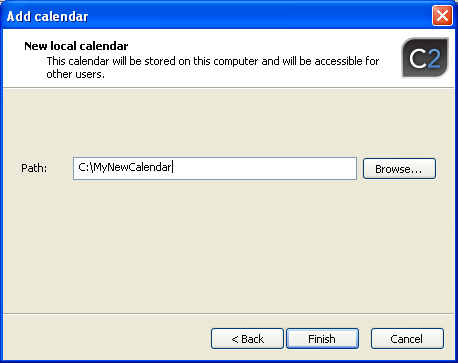
A dialog box will display where you can specify where on the local drive the new
calendar will reside (Fig.4). By using the Browse button, specify
the path to the file where the calendar data will be kept.
|
|
3.
|
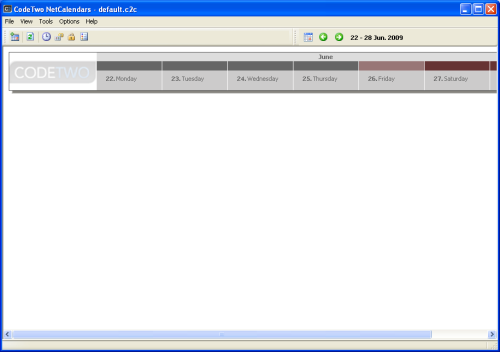
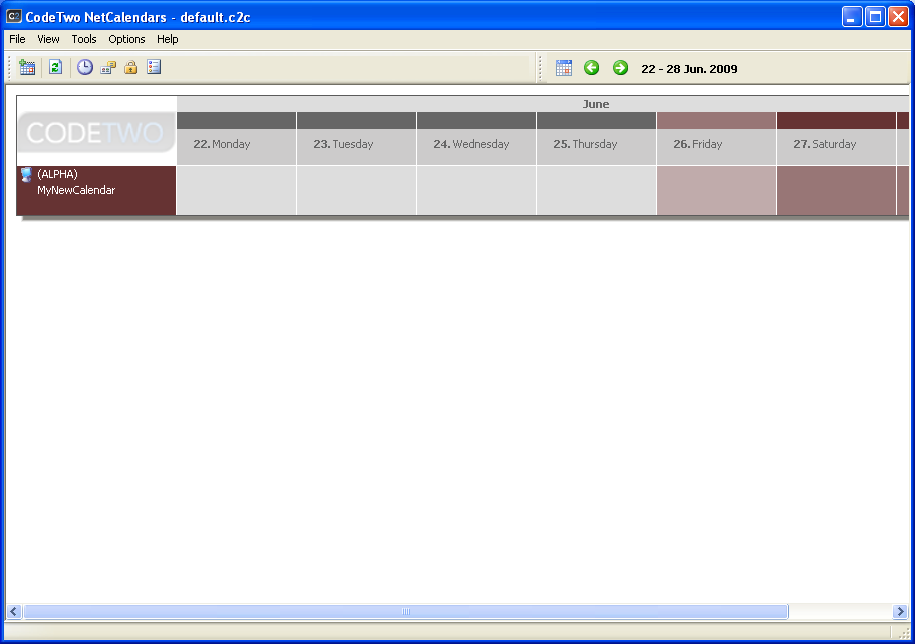
After clicking Finish, a new calendar will create on the computer. At the
same time, the calendar is added to the current view (Fig.5). From now on,
appointments can be added and it is accessible for other users. In the network.
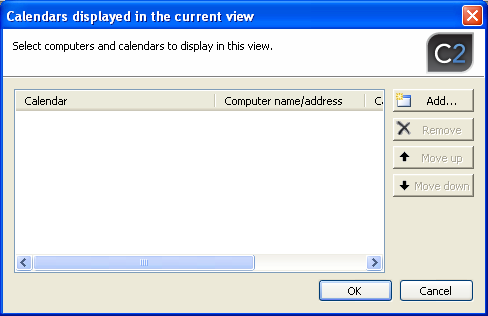
Click OK to close Calendars displayed in the current view dialog box.
|
|
1.
|
In Add calendar dialog box select Open an existing calendar on
this computer option. If you wish to add the calendars from Microsoft Outlook, select Show
MS Outlook calendars option. Now click Next.
|
|
2.
|
A list of all available calendars on the local machine will display. If in the preceding
dialog box Show MS Outlook calendars option was checked, the list will include
all calendars of Microsoft Outlook from the default profile.
|
|
3.
|
Select the calendar you wish to add to the view and click Finish.
|
|
4.
|
The calendar will be added to the current view (Fig.5) . Click OK
to close Calendars displayed in the current view dialog box. Now you can
add and edit the existing items in the calendar.
|
|
1.
|
In Add calendar dialog box (Fig. 3)select Open an existing calendar
on another computer option. If you wish to add the calendars from Microsoft
Outlook, select Show MS Outlook calendars option. Now click Next.
|
|
2.
|
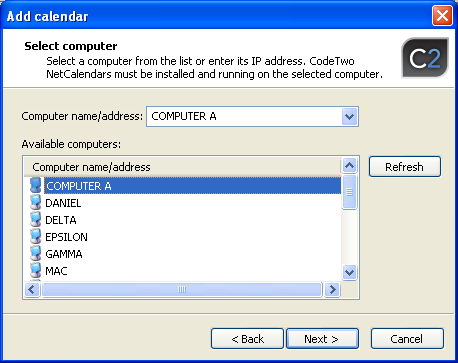
In the resulting dialog box you can choose the computer that hosts the calendar
you are interested in (Fig.6). Choose the computer name from the list or,
if the computer is not featured in the list, enter its IP address manually in Computer
name/address field. You can use a DNS name or IP address of the machine
located in the Internet if the computer is accessible through a communication port
defined in the program. See Defining TCP port. Click
Next. If a communication problem occurs, see Resolving communication
problems between CodeTwo NetCalendars clients.
|
|
|
Fig.6. Selection of the machine hosting the calendar.
|
|
|
3.
|
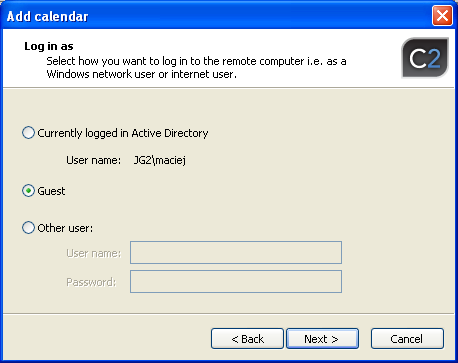
A dialog box in which you can choose logging in options to the remote machine will
appear. You can choose from between 3 options:
|
•
|
Currently logged in Active Directory user. This is a recommended mode if
you are connecting to a machine in your local network. You do not need to provide
user name or password as CodeTwo NetCalendars will retrieve the data automatically.
To choose this option, you need to work in Active Directory environment. This mode
cannot be selected if you are connecting to a machine via the Internet.
|
|
•
|
Guest. Logging in to a remote machine anonymously. By logging in using this
mode you will have minimum rights to the added calendar.
|
|
•
|
Other user. This enables logging in to a remote machine as a specific user
of CodeTwo NetCalendars. To get you login and password, contact the owner of the
remote machine. More can be found in Access rights management in
CodeTwo NetCalendars.
|
|
|
|
Fig.7. Selection of logging mode to the remote machine.
|
|
|
4.
|
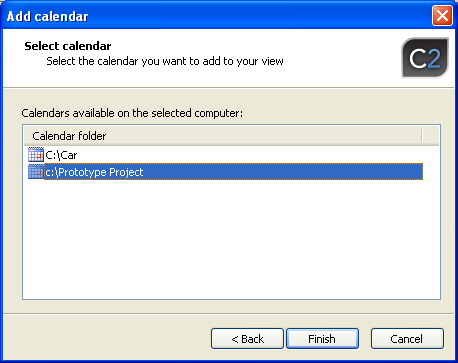
Click Next. A list of all available calendars on the selected machine will
display (Fig.8). If in the preceding dialog box Show MS Outlook calendars
option was checked, the list will include all calendars of Microsoft Outlook from
the default profile.
|
|
|
Fig.8. List of available calendars on the remote machine.
|
|
|
5.
|
Highlight the calendar you wish to add to the current view and click Finish.
|
|
6.
|
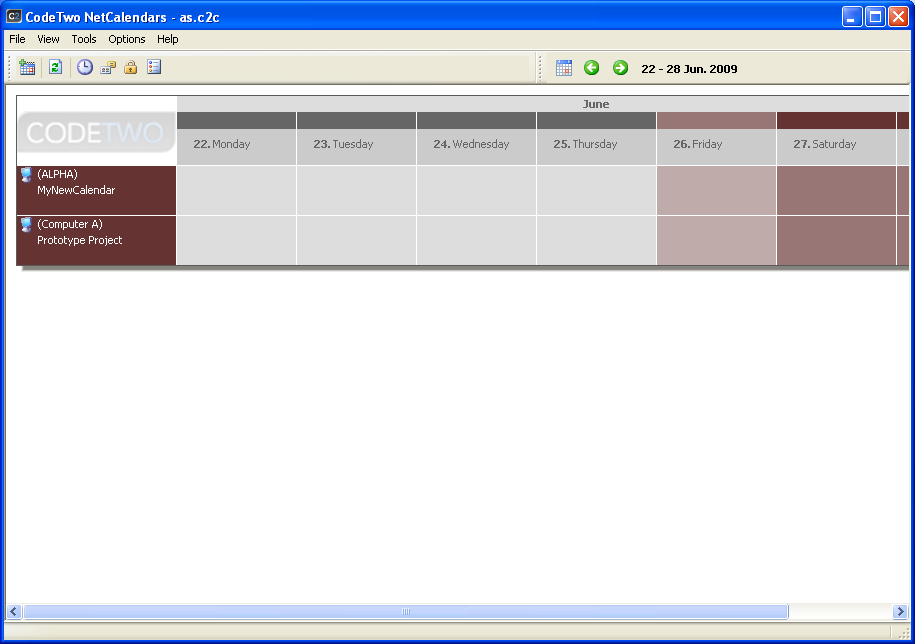
The calendar will be added to the current view (Fig.9). Click OK to
close Calendars to display in the current view dialog box.
|