Create a template for different message formats
To ensure that your signatures are displayed correctly on all devices and email clients, you need to pay special attention to the format of your signature template. When an email message is sent, our software adds a corresponding signature template based on the format of this message. Some email clients and devices are set up to send emails in one format only. If a signature template in that format is missing, no signature will be added. That is why you should create your template for all available formats.
The signature template editor allows you to design individual templates for HTML, RTF and plain text email messages. You can also quickly convert your signature template from one format to another.
The signature template editor has been replaced with the new web-based interface in CodeTwo Email Signatures for Office 365. The new editor no longer supports editing RTF signatures, but signature templates in such format are automatically generated from plain text signatures when you save your template. Learn more
Use the buttons in the Format group (Fig. 1.) to switch between the HTML, RTF and plain text format. Design your template for each format individually or use the Convert button to automatically convert your signature template to a simpler format (HTML to RTF or plain text, or RTF to plain text). The template customization options available on the ribbon change depending on the selected format, as shown in Fig. 1. For details, see the table at the end of this article.
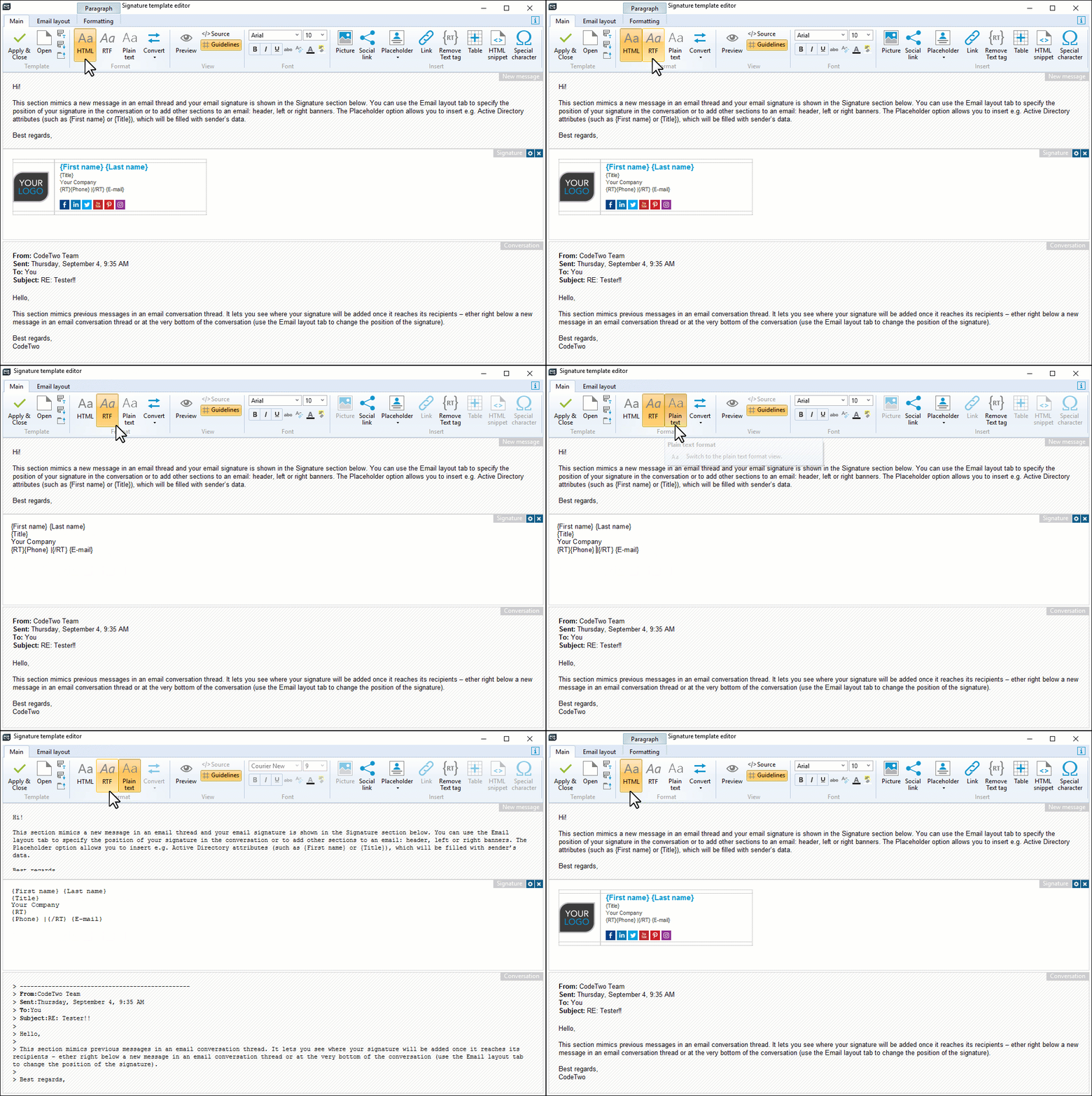
Fig. 1. When you change the template format, the available commands change as well.
Which message formats are available and what are the differences between them?
HTML offers more signature customization options than the other formats and gives you access to most features of the signature template editor. HTML is also currently the only format that allows you to embed graphics into email signatures. The predefined signature templates included in the editor are all HTML-based. Rich Text Format (RTF) is Outlook's proprietary message format and is not supported by non-Microsoft email clients. It offers limited formatting options compared to HTML. The plain text format supports no message formatting at all. Plain text signatures are important if people in your organization send emails from mobile devices (many mobile devices send plain text emails by default or convert emails to plain text when you forward/reply on a mobile email client).
A list of options available for different formats
Location |
Available options | ||
|---|---|---|---|
| HTML | RTF | Plain text | |
| Main tab > View |
|
|
|
| Main tab > Font |
|
|
|
|
Paragraph tab > Spacing Paragraph tab > Text wrapping |
|
|
|
| Main tab > Insert |
|
|
|
| Email layout tab |
Email sections you can insert and configure:
|
Email sections you can insert and configure:
|
Email sections you can insert and configure:
|