CodeTwo Public Folders consists of two modules: the Syncing Master and the Outlook Add-in. The Syncing Master handles communication
and data synchronization between the Outlook Add-ins and it should be installed on one of the computers in the local network.
The Outlook Add-ins should be installed on the computers in the local network that will be used for public folders in Microsoft Outlook.
If you want to use public folders in Outlook on a computer hosting CodeTwo Public Folders Syncing Master, you also need to install
the Outlook Add-in of the program on that computer.
Read installation walkthrough
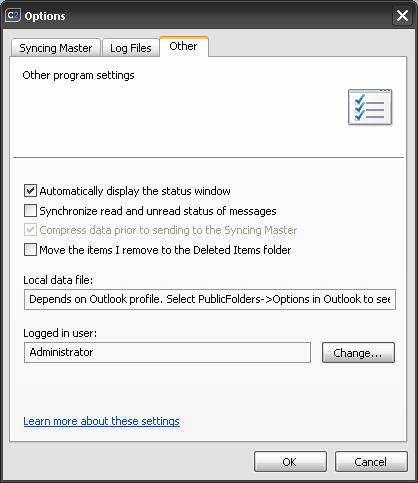
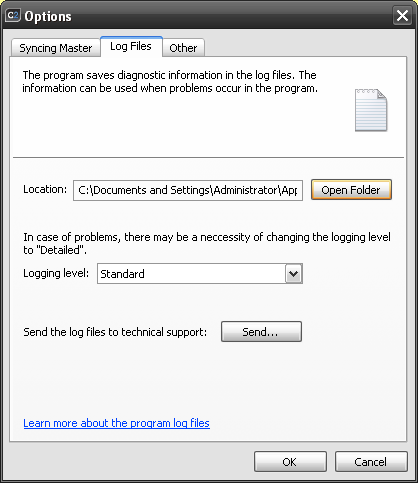
A detailed description of the Add-in settings is presented below:
|
Adding public folders to the Outlook profile
Once the CodeTwo Public Folders Outlook Add-in is installed, the default Outlook profile of the user displays a new C2PublicFolders tree, in which users can create public folders (
Fig.7). To display the C2PublicFolders list, click
Show All Public Folders on the CodeTwo Public Folders toolbar. Alternatively, to display the list of folders in Outlook 2000/XP,
choose
View |
Folder List from the main menu.
In Outlook 2003/2007/2010 choose
Go |
Folder List or press
Ctrl+6:
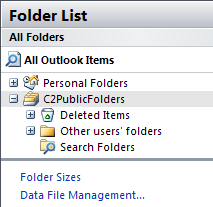 |
| Fig.7. Public Folders on the Folder List in Outlook |
When the software is installed, start Microsoft Outlook using another profile; the software will display the
dialog box asking you whether you want to add public folders to that profile:
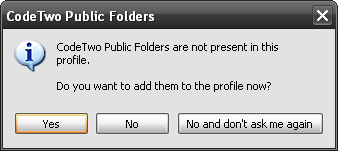 |
| Fig.8. A dialog box asking you whether you want to add public folders to a non-default profile. |
If you click
No and don't ask me again, the public folders will not be added to the profile and
the dialog box won't pop-up anymore. If you want to add public folders to the profile later, follow the tips below:
Outlook 98/2000
| 1. |
Start Outlook using the profile in which you wish to add public folders. |
| 2. |
Choose Tools | Services from the Outlook main menu. |
| 3. |
In the Services dialog box click Add. |
| 4. |
In the Adding a service to the profile dialog box select the C2PublicFolders service and click OK. |
| 5. |
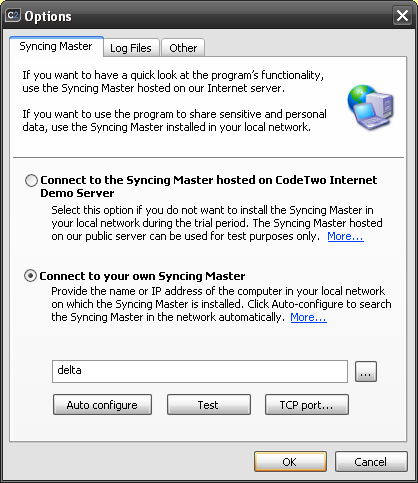
The above-described configuration dialog box of the CodeTwo Public Folders will display. If the name of the computer hosting the Syncing Master is correct, click OK.
|
| 6. |
Click OK to close the Services dialog box. |
Outlook XP/2003/2007/2010
| 1. |
Start Outlook using the profile in which you wish to add public folders. |
| 2. |
In the Outlook main menu choose File | New | Outlook Data File.
or
In the Outlook main menu choose Tools | Options | Mail Setup, click
Data Files and then Add.
or
On the Outlook 2010 ribbon click New items, More items, Outlook data file.
|
| 3. |
In the Outlook Data Files dialog box select the C2PublicFolders service and click OK.
|
| 4. |
The above-described configuration dialog box of the CodeTwo Public Folders will appear. If the name of the computer hosting the Syncing Master is correct, click OK.
|
| 5. |
Click Close and then OK. |
Removing public folders from the Outlook profile
If you want to remove public folders from the current Outlook profile, click the right mouse button on the C2PublicFolders folder and select
Close the folder: C2PublicFolders command from the popup menu.
 Even if the option described above remains inactive, all deleted data can be easily retrieved in the Restoring items tab in the Administration panel.