If you are using Public Folders version 4.6.3 or older, please consult this User's Manual.
Syncing Master Settings
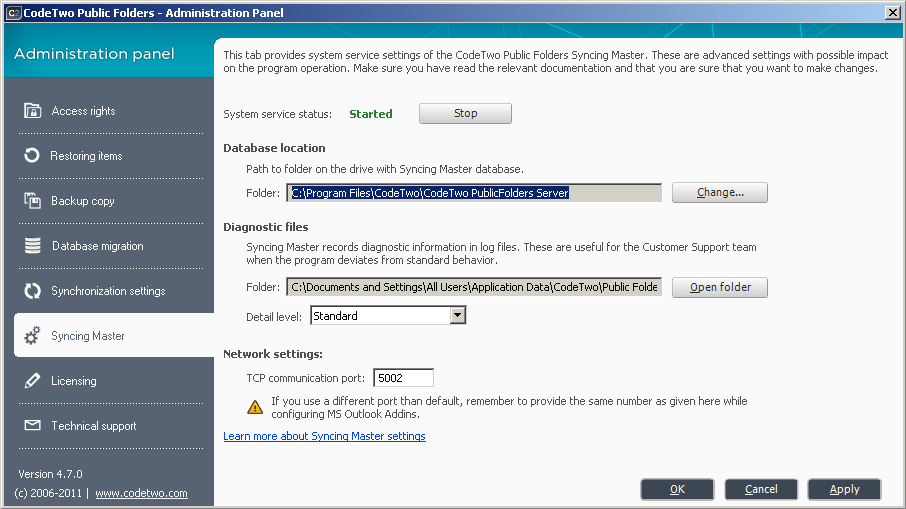
Syncing Master settings can be found under a tab in the Administration Panel. To change the Syncing Mater settings go to Start, Programs, CodeTwo, Public Folders - Syncing Master, Administration Panel and then click the Syncing Master tab (Fig. 1.).
Fig.1. Syncing Master tab in the Administration Panel.
The Syncing Master Configuration window in CodeTwo Public Folders contains four main sections. The settings defined in each one of those sections are advanced and can affect the way the software operates.
The first thing that can be controlled and changed in the settings window is the System service status. If the software was correctly installed, the service should be Started. Otherwise the service will be marked as Stopped. Additionally, you can manually stop and start the service using the Stop / Start button. If you have problems with the CodeTwo Public Folders system service, please read the Configuring C2PublicFolders system service section.
In the next section you can specify the Database location. It is the path to the folder on your drive, in which the Syncing Master database is stored. When changing the database location (for example moving it to a new hard drive), you have to remember about modifying the database folder path as well.
The Diagnostic files section allows you to define a folder on your hard drive to store the diagnostic files in. The Syncing Master saves the diagnostic information in log files. This information helps CodeTwo Customer Support analyze how the software works. The Detail level specifies the way the diagnostic files are saved. This level should be set to the default "Standard" and changed to "Detailed" only when there are communication problems between the Syncing Master and the machines with Outlook Add-ins installed.
In the last section of the Syncing Master tab (Network settings) you can define the TCP port, which is used for communication between the MS Outlook Add-ins and the Syncing Master. By default it is set to port 5002. If there is no specific need to change this port, we recommend using the default value. If, however, you need to use a different port, remember to change its value while configuring all the Outlook Add-ins as well.
All the changes made in the Syncing Master settings tab have to be confirmed by clicking the Apply button.
Configuring C2PublicFolders system service
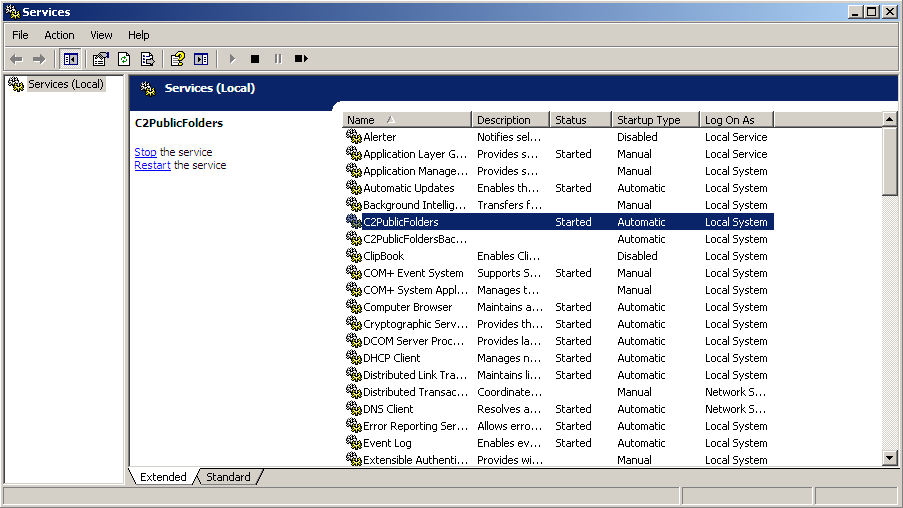
The Syncing Master of CodeTwo Public Folders is implemented as a system service. Should any connectivity problems between the Syncing Master and the Outlook Add-ins occur, you will have to check the status of the C2PublicFolders system service, using the Services console from the Administrative tools programs group (you can also do it in the Syncing Master tab in the Administration panel of CodeTwo Public Folders).
If the MS Outlook Add-ins cannot connect to the Syncing Master, the first and most important thing to do is to check whether the C2PublicFolders service is running. In order to do that, open the Services console and make sure that the C2PublicFolders service is Started (Fig. 2.). If not, right-click the service and from the dropdown menu select Start. If it is not possible to start the service this way and you experience a logging error, right-click the service, select Properties from the dropdown menu, go to the Log On tab and make sure that the Local System account option is checked. More about solving connectivity problems.
Fig.2. C2PublicFolders system service status.
If the C2PublicFolders service is not automatically started at system startup, make sure that the startup type of the service is set to Automatic. Right-click the service, choose Properties and in the General tab set the startup type to Automatic.