If you are using Public Folders version 4.6.3 or older, please consult this User's Manual.

Access Rights Management
The Administrator can define user access rights to the data in the public folders and to the shared personal folders. Granting rights is done in the Acces rights tab in the Administration panel, installed with the Syncing Master. In order to start the program, click Start menu and select Programs, CodeTwo, Public Folders - Syncing Master, Administration panel.

The access rights to the shared personal folders can also be managed directly in Outlook by their owners. More...

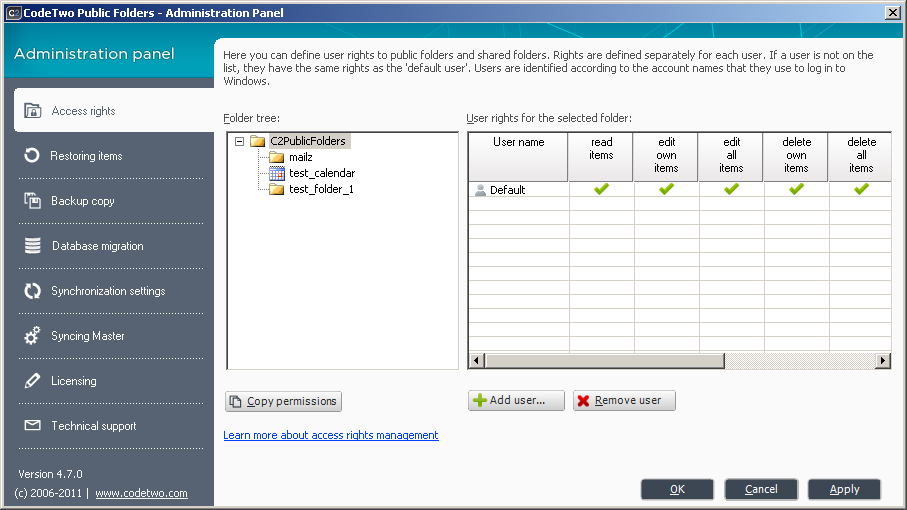
The access rights tab consists of two panes (Fig.1). In the left pane, called Folder tree, the entire public and shared personal folder structure is displayed. The right pane - User rights for the selected folder - shows access rights for all users to the currently selected folder. Access rights displayed in the right pane always apply to only one, currently marked folder from the folder tree.

Administration tab for public folders and shared personal folders access rights management.
Fig.1. Administration tab for public folders and shared personal folders access rights management.

On the folder list there are public folders and all currently user-shared personal folders. All public folders are located in the C2PublicFolders tree. In the other trees there are personal folders - displayed in a separate tree for each user. Each tree's name consists of the domain or a computer (if there is no domain in the network) and the Windows login name (username used to log in to Windows).

The Administrator can't start sharing a personal folder of a user (or stop sharing it). This can be done only by the owner of the personal folder via Outlook (read how to do it). The Administrator can only change access rights to that folder.

Initially, after installing CodeTwo Public Folders, all users have full access rights for all public folders. Therefore they can create, edit and delete all items and folders. If you want to restrict rights for some users, you need to add them to the list in the right pane and define the appropriate access rights for them. User ID's in CodeTwo Public Folders are based on the Windows user names (by default this is the name of the account used to log into the system).

In order to define user rights, add the user to the user list by clicking the Add user button. A dialog box with a text field will appear where you can enter the username. The username can be checked in the Options tab of the MS Outlook Add-in. After providing the username and clicking OK, the user will be added to the user list. Then define the tasks, which the user can perform on the items in the selected folder by checking or unchecking the appropriate rights beside the username.

There is a user called Default on the user list for each folder. The rights assigned to that user define the default level of access rights for to the currently selected public folder. Every user who is not added to the list of rights of the given folder has default access rights (like the Default user for that folder).

In order to delete a user from the list, select the user and click the Remove user button. The user will be deleted from the list and from now on he/she will have the default access rights for the selected folder.

The Copy permissions button located under the folder tree allows quick copying of rights from currently selected folder to all of its subfolders. For example, if you want the same access rights to take effect in all of the public folders, define the rights for the root folder (C2PublicFolders), and then click Copy permissions. They will be copied to all public folders.

The changes made in the Access rights tab will not be saved until you click the Apply button.

The table below describes the possible rights for the folder that can be granted to a user:

The right's name Description
Read items User can read objects in the folder. If the user doesn't have this rights, he/she will see an empty folder.
Edit own items User can only edit the objects that have been created by himself/herself.
Edit all items User can edit all objects in the folder.
Delete own items User can only delete the objects that have been created by himself/herself.
Delete all items User can delete all objects in the folder. This right does not allow users to delete folders. In order to delete a folder, the "Folder owner" right is required.
Create items User can create new objects in the folder.
Create subfolders User can create new subfolders in a folder - concerns public folders only. This right has no effect for shared personal folders, as the subscribing users never can create any subfolders in those folders (only the owner of the shared personal folders can create subfolders).
Folder visible User can see the folder. If the user does not have this privilege, he/she can see neither the folder, nor any of its subfolders.
Folder owner Only the users with that privilege can delete a folder, change its name and define access right to the folder for other users. Each folder must have at least one owner. The personal folder is always owned by at least one user that started sharing it.

It has to be noted that most of the rights are independent from each other. A user may, for example, have the right to Create items, but not to Read items. However, in this specific case, after an element is created by the user, it will remain visible for the time of the given session, and will disappear after restarting Outlook.

Edit own items and Edit all items, as well as Delete own items and Delete all items are interdependent rights - which is the result of their logics. A user may not be granted the right to Edit all items and at the same time be denied the right to Edit own items; the same rule applies to the rights for deleting items.