How to share my personal folder with other users
You can share your personal folders with other users and grant those users respective access rights, so that they can work in your folders. There are two ways in which you can share a personal folder with other users:
Method #1
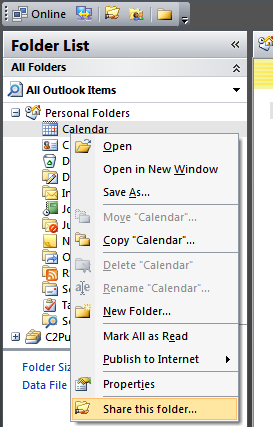
1. Click the selected personal folder with the right mouse button and from the context menu choose "Share this folder..."
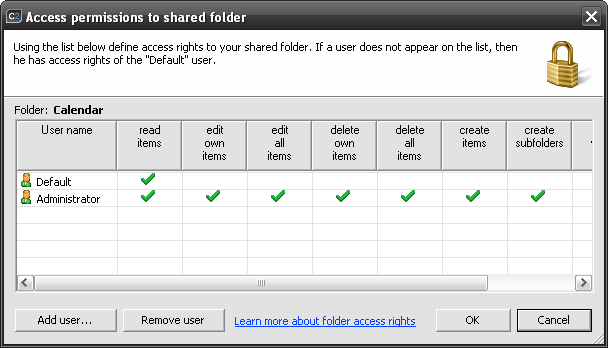
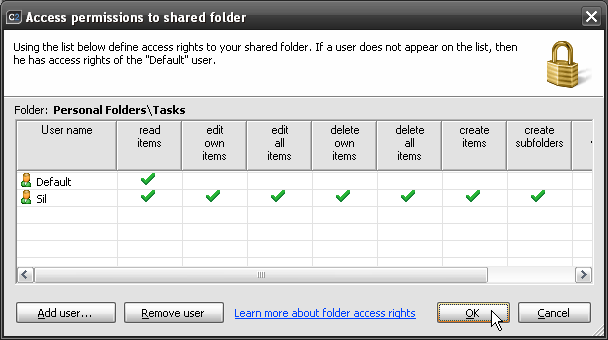
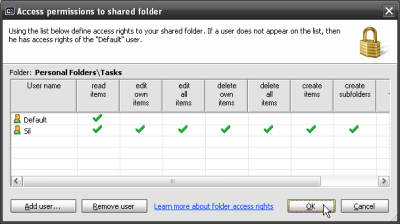
2. The dialog box will display in which the access rights to the folder can be defined. Give the appropriate access rights to users and click OK. By default all users have the right to read the folder - they cannot make any changes.
More about managing access rights...
Method #2
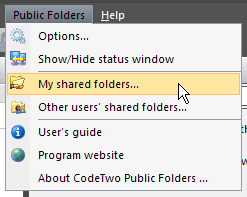
1. Choose Public Folders, My shared folders from the Outlook menu or on the CodeTwo Public Folders toolbar click My shared folders:
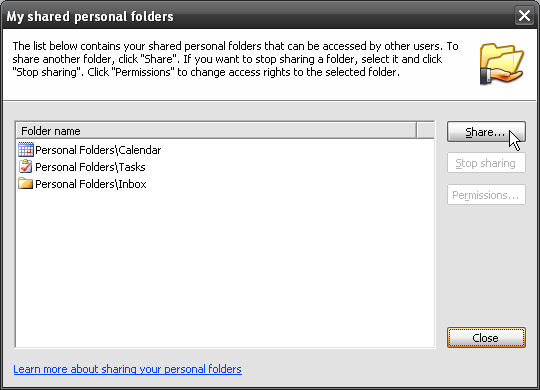
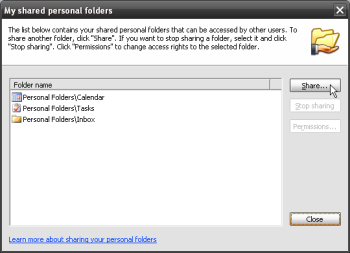
2. A dialog box containing the list of folders you are already sharing will display. If you are sharing a folder for the first time, the list will be empty. To share the selected folder, click Share:
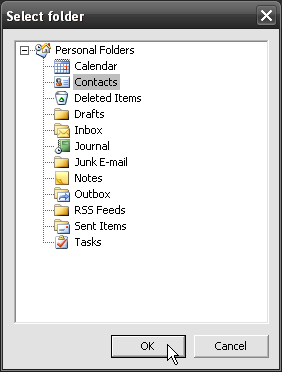
3. From the personal folders tree choose the folder you want to share (e.g. Calendar) and click OK:
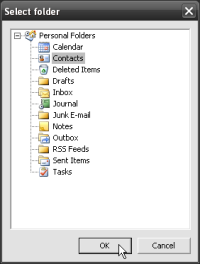
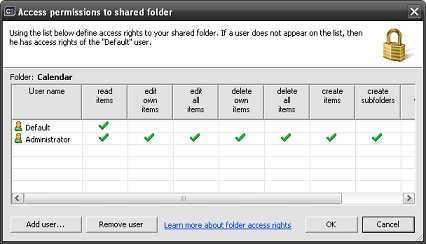
4. A list of user access rights for the folder will display. Grant the users the appropriate rights
and click OK. By default, all users are only granted the read rights for the folder and cannot make
any changes.
More about granting access rights...
After these steps the folder will become shared. Other users will be able to open it and work respectively to
the rights they are granted. The changes in the folder will be immediately made visible to other users.
 When you start sharing your personal folder, it is NOT automatically added to Other Users' Folders tree.
Therefore, it is not instantly visible to other users. If a user wants to browse another user's folder,
they must first open it, see How to open a folder shared by another user?
When you start sharing your personal folder, it is NOT automatically added to Other Users' Folders tree.
Therefore, it is not instantly visible to other users. If a user wants to browse another user's folder,
they must first open it, see How to open a folder shared by another user?
 The objects in the shared folders marked as Private will always remain invisible to other users independently from the rights they have.
Learn more about sharing and working with shared personal folders.