How to open a folder shared by another user
If another user shares his personal folder and has granted you the
appropriate rights, you can open the folder and work directly on the data in it. To open a shared folder of
another user, do the following steps:
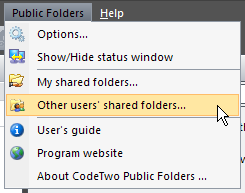
1. Choose Public Folders | Other users' shared folders option from the Outlook main menu or on the CodeTwo Public Folders toolbar click Other users' shared folders:
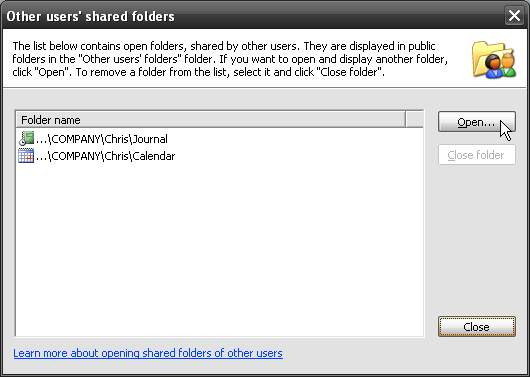
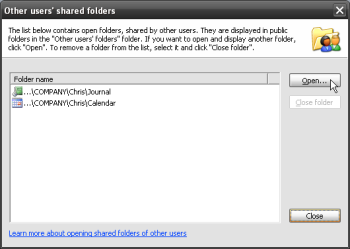
2. A dialog box, containing the currently opened folders of other users, will display. If you're
opening a shared folder for the first time, the list will be empty. Click the Open folder button to
open a new folder:
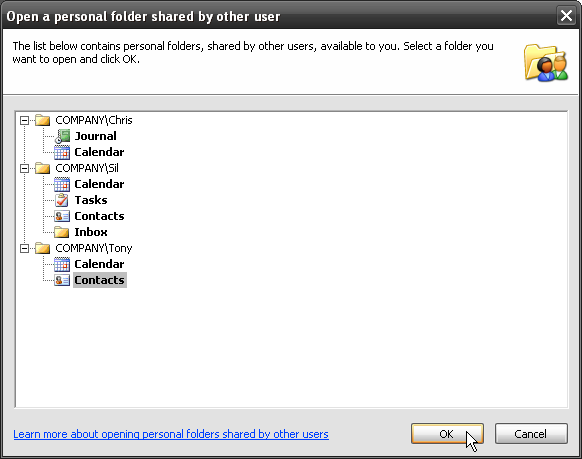
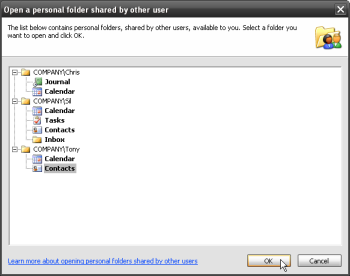
3. A tree containing user names and the folders they share will display. Select the folder you
want to open and click OK:
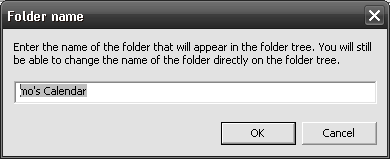
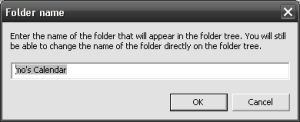
4. A dialog box with the original name of the folder will display, which you are free to change. The name you specify will exist only on your list of public folders - it does not impact the original name of the folder. The displayed name also can be changed later at any moment directly in the folder list.
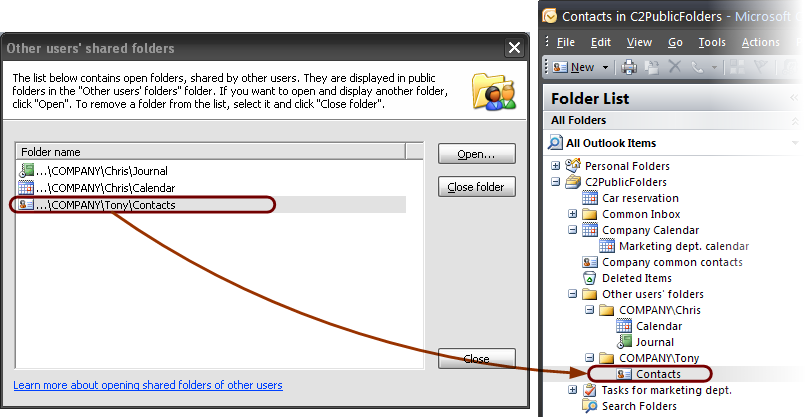
5. The selected folder will be added to the list. After closing the dialog box, the folder
will appear in the "C2PublicFolders\Other users' folders" branch (it will not appear in your personal folders):
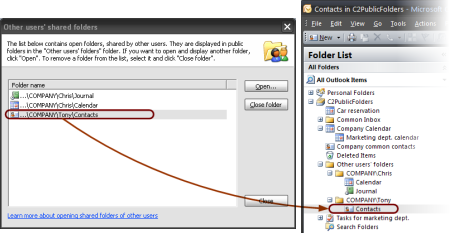
You can now work in the personal folder of other user the same way as you do in the public folders. Depending
on the rights you have, you can create, edit or delete new objects respectively.
 See how you can share your personal folder.
Learn more about sharing and working with shared personal folders.