How to create a new public folder (Outlook 2003/2007)
If you don't use the Folder List view in the left pane, at first it may be difficult to
notice the public folders in Outlook. Below we present a short description of how a new folder is created in the public folders and how data can be shared with other network users.
 It is necessary to read this text if the
Unable to create the folder error message appears when creating a folder.
It is necessary to read this text if the
Unable to create the folder error message appears when creating a folder.
1.
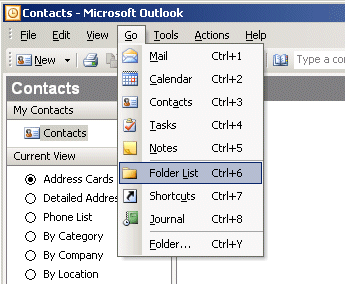
Display the list of all folders available in the current profile. To do this, choose Folder List
from the Go menu or press Ctrl+6. The Folder List view is very similar to the
Mail view (Ctrl+1). In both views the hierarchical structure of folders is displayed, but in the
Mail view only mail folders are displayed, so in that view you can't see other types of folders, such as
calendar, contacts, tasks, etc.
2.
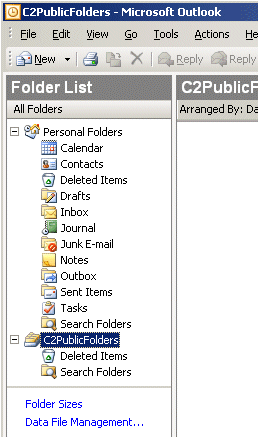
The new tree of folders called "C2PublicFolders" will appear on the folder list; these are public folders with the data
shared by network users. If no public folder has been created so far, only two folders will be
available on the list: "Deleted Items" and "Search Folders".
3.
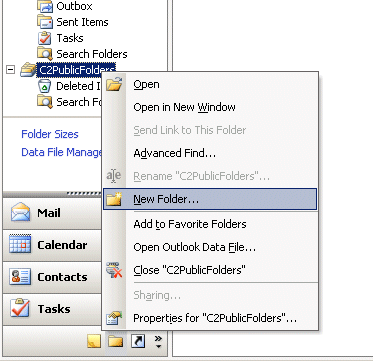
To create a new folder, click with the right mouse button on the "C2PublicFolders" root folder and choose the
New Folder option from the popup menu:
4.
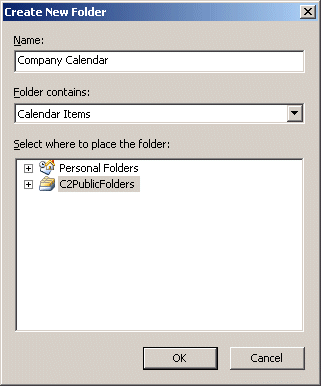
A dialog box in which you can create a new folder is displayed. Enter the name of the folder and select its type. In the figure below a folder of the calendar type called "Company calendar" will be created. Click OK.
Make sure that on the Select where to place the folder list the "C2PublicFolders" folder is selected
(as shown below). If not, the Unable to create the folder error message may appear.
5.
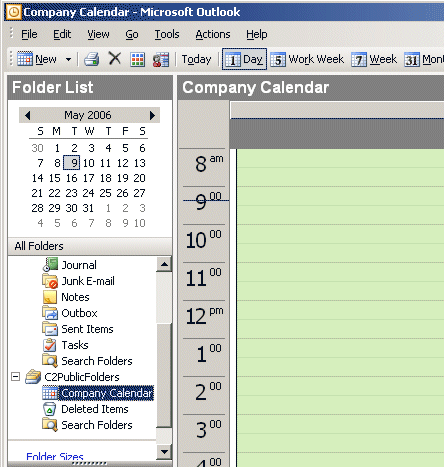
The new public folder will be added to the tree of public folders. Now you can create new items within that folder
and they will immediately become available to other network users who use CodeTwo Public Folders:
6.
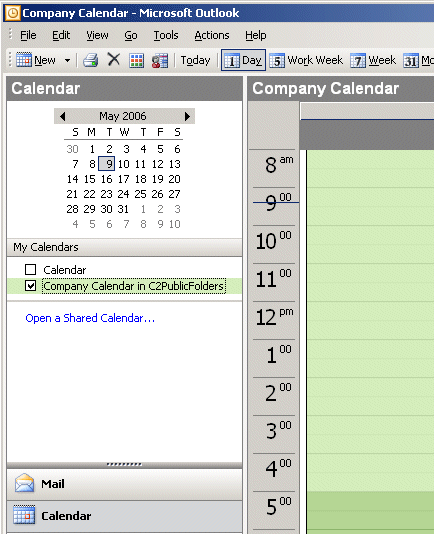
If you change to the view displaying a certain type of folders (here: calendars), you will see the newly created folder
on the list: