| 1. |
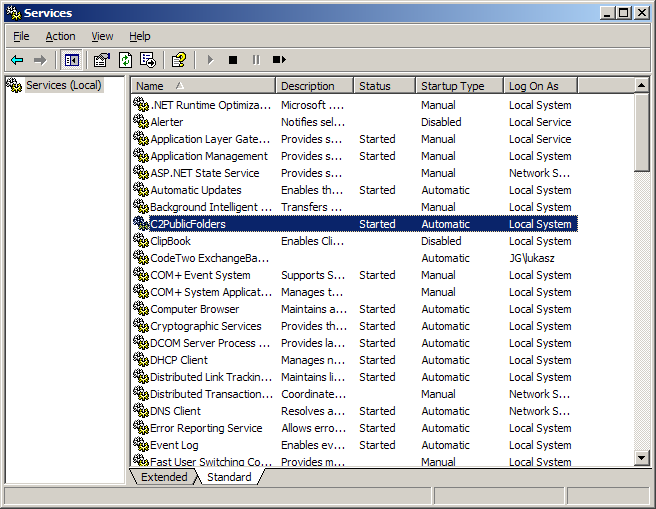
On the computer with the program Syncing Master installed open the Services console. To do this, select Start | Programs | Administration Tools | Services.
|
| 2. |
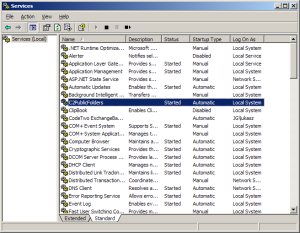
Find the C2PublicFolders service and make sure it is in the Started state (Fig.2).
Otherwise, right-click on the service and choose Start from the menu. If the service cannot be
launched and a logging error is displayed, click the right mouse button on the service, choose
Properties from the popup menu, go to the Log on tab and check if the
Local System account option is selected.
|
| 3. |
Make sure that the startup type of the C2PublicFolders service is set to Automatic.
Click the right mouse button on the service, select Properties and in the General tab
set the Startup type for Automatic.
|
|
|
Fig.2. The "C2PublicFolders" system service must be started.
|
| 1. |
In the Windows Start menu choose Run and enter the following command:
cmd
|
| 2. |
The console of a command prompt launch. Enter the command:
ping <Syncing_Master_name>
where <Syncing_Master_name>
is the name of a computer with a Syncing Master installed, - the same as in the dialog window of the Outlook Add-in configuration.
For example, if the computer with a Syncing Master installed has been named ALPHA and you want to check whether you can connect to it from another local computer, enter the following command:
ping ALPHA
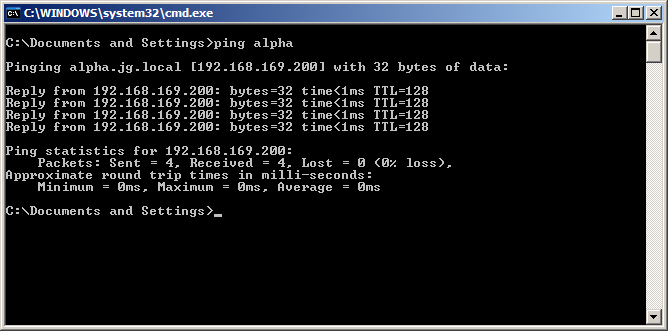
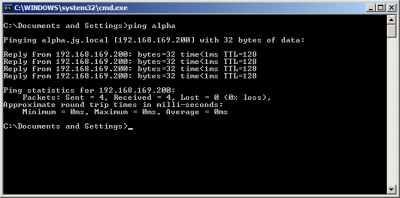
If you don't have problems establishing a connection with the ALPHA computer, the response should look as in
Fig.3. Otherwise, you will receive an error message, e.g. "Request timed out" or "Ping request could not find host ALPHA. Please check the name and try again" or another error message.
|
|
Fig.3. Checking connection with a remote computer using the "ping" command.
|
If you cannot establish a connection with the computer, where the Syncing Master of CodeTwo Public Folders is installed with the "ping" command,
you have to configure your network correctly and then start the CodeTwo Public Folders Outlook Add-in.
|
|
|
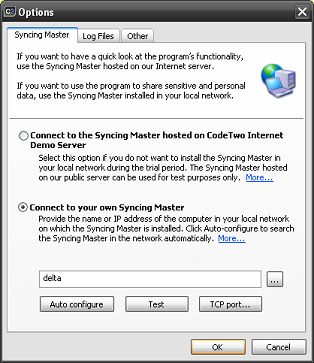
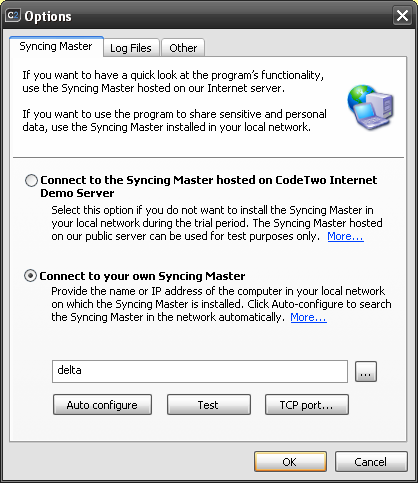
Fig.4 In the Syncing Master tab you can test the connection with the Syncing Master.
|
|
|
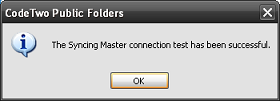
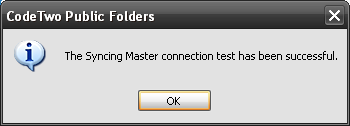
Fig.5 Message indicating successful connection with the Syncing Master.
|
|
|
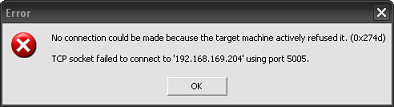
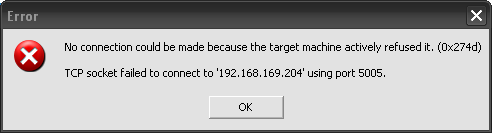
Fig.6 Message indicating no connection with the Syncing Master.
|
|
|
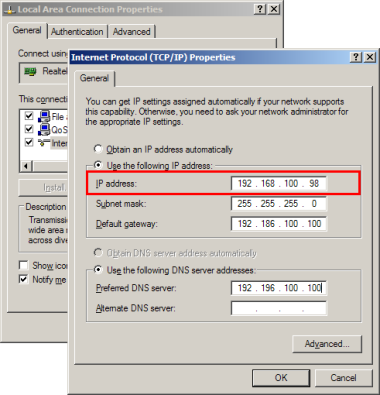
Fig.7. Getting the IP address of the computer, on which the Syncing Master of CodeTwo Public Folders has been installed.
|
| 1. |
On the computer with an Outlook Add-in of CodeTwo Public Folders, where the problem occurs, run the configuration program of the firewall.
To do this, from the Start menu choose Settings | Control Panel | Windows Firewall
and go to the Exceptions tab.
|
| 2. |
Click the Add Port button.
|
| 3. |
In the Name field enter "135 TCP". In the Port number field enter 135 and choose the TCP option.
Click OK.
|
| 4. |
Again click the Add Port button.
|
| 5. |
In the Name field enter "137 TCP". In the Port number field enter 137 and choose the
TCP option. Click OK.
|
| 6. |
Confirm all entered changes, close the configuration program of the firewall and restart the computer.
|
Now after you run the Outlook Add-in, data should be immediately synchronized with the Syncing Master of CodeTwo Public Folders.

 If the port number is changed, it should be changed in all Outlook Add-ins of the program and in the Syncing Master
as the same port number must be defined on each module. See section:
If the port number is changed, it should be changed in all Outlook Add-ins of the program and in the Syncing Master
as the same port number must be defined on each module. See section: