C2PublicFolders system service configuration
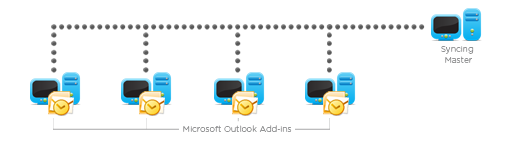
The Syncing Master is developed as a system service. If the Outlook Add-ins have difficulties connecting
to the Syncing Master, you must check the C2PublicFolders system service configuration using the
Services console in the
Administrative Tools program group.
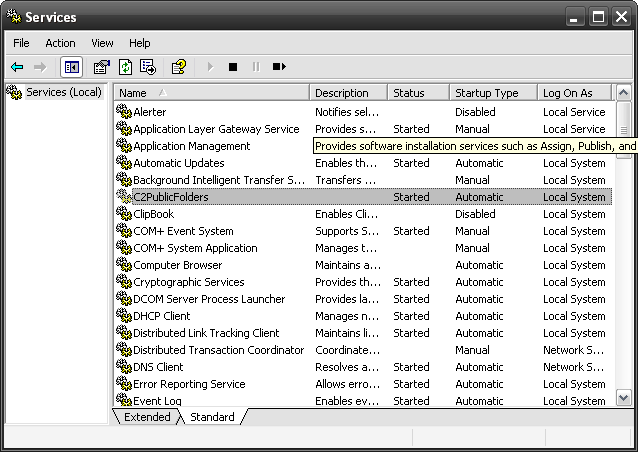
If the Outlook Add-ins cannot connect to the Syncing Master, check whether the C2PublicFolders system service
is started. In order to do that, open the
Services console and make sure that the C2PublicFolders
service is started. If it isn't, click the right mouse button on the service and select
Start from
the popup menu. If the service cannot be started and the login error message is displayed, click the
right mouse button on the service, choose
Properties from the popup menu, go to
Log On and
check if the
Local System account option is selected.
If the C2PublicFolders service does not start at the computer start up, make sure that
Startup Type
for the C2PublicFolders service is set to
Automatic. Click the right mouse button on the service,
select
Properties, and on the
General tab set the start up type to
Automatic.
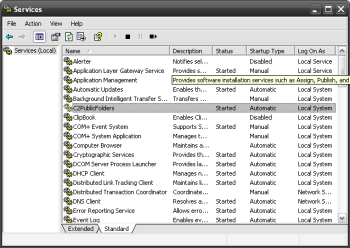 |
| Fig.3. C2PublicFolders system service configuration (Syncing Master) |
Outlook Add-in settings
If you want to check or change the current Outlook Add-in settings, choose
Public Folders |
Options
from the Outlook menu and the settings dialog box will be displayed.
Syncing Master tab
The
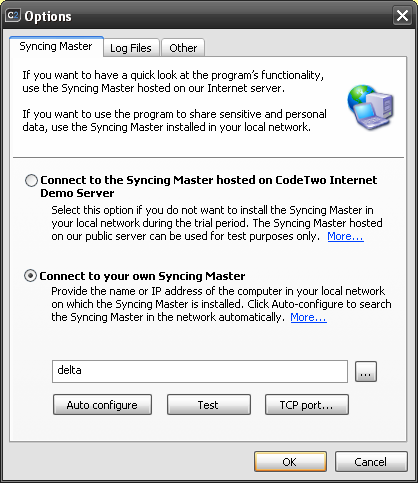
Syncing Master tab (
Fig.4) informs you whether what you are using is the demo or your own Syncing Master.
If
Connect to the Syncing Master hosted on CodeTwo Internet Demo Server option is checked, your Outlook will display the public folders and their contents from our internet demo server.
Please note that the demo server should be used for testing purposes only, as the data will be visible to everyone over the internet.
Read more about using the internet demo server.
If you have already installed the Syncing Master of CodeTwo Public Folders, check the
Connect to your Syncing Master
option, provide its name (or IP) and you will be able to use it on a day-to-day basis and keep important and
confidential data. To find the computer in the network, you can also use the
Browse button. If you have
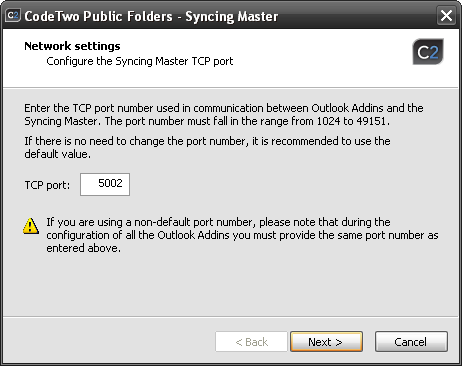
set a non-default TCP port number on the Syncing Master, click the
TCP port button to provide its new number.
To check the connection with the Syncing Master, use the
Test button.
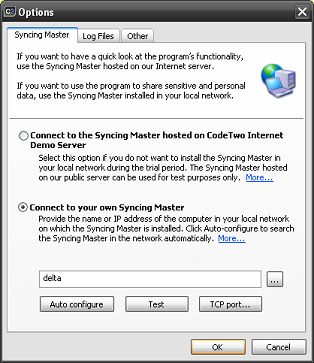 |
| Fig.4. Outlook Add-in settings - the Syncing Master tab. |
Log files tab
The
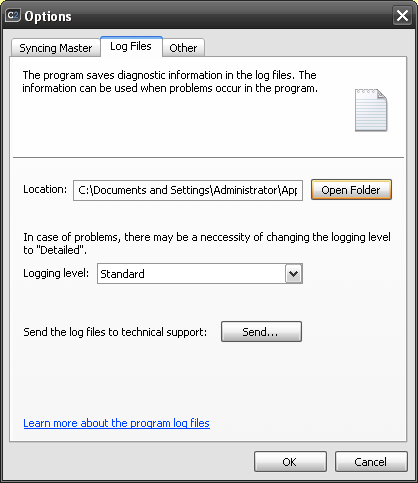
Log files tab (
Fig.5) includes the
Location field. It shows the path to the log
files (text files containing some diagnostic information). The
Logging level should be set to
Standard.
It should be set to
Detailed only if data synchronization errors occur. Click
Send to send
the logging files to technical support.
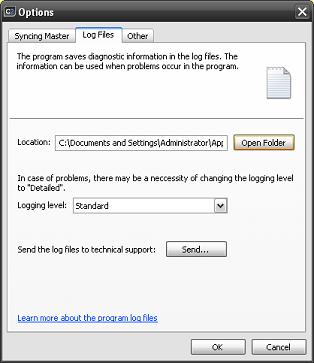 |
| Fig.5. Outlook Add-in settings - the Log files tab. |
Other tab
In the
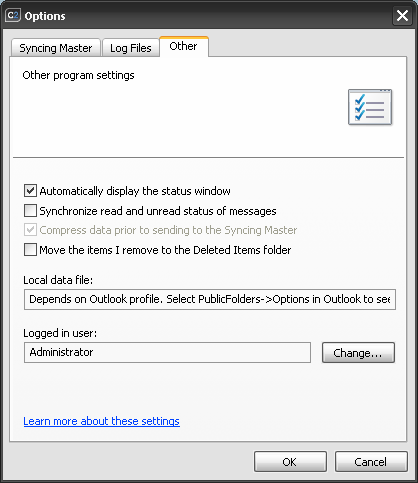
Other tab (
Fig.6) the
Automatically display the synchronization window option lets
you decide whether the data synchronization status dialog should by displayed while synchronizing data in the
shared folders. The window is automatically shown during the initial synchronization when you're running
Outlook for the first time after the installation of CodeTwo Public Folders.
Synchronize read / unread status of messages makes the Syncing Master synchronize information whether a message has been read by any user in public folders. See
how to activate the synchronization of read/unread status of messages.
By selecting the
Compress data prior to sending to the Syncing Master option you decide whether the data send from the Outlook Add-in
to the Syncing Master undergoes compression. Compression will improve the speed of synchronization between the Outlook Add-in and the Syncing Master.
The
Local data file field shows the path to the PST file, where the local copy of the shared folders data
is stored. The advantage of a local copy is that the program will synchronize only the data, changed while the
Outlook Add-in was not connected to the Syncing Master. This makes synchronization much faster and more effective.
The local copy makes it possible to work in the offline mode when there's no connection to the Syncing Master.
The
Logged user field shows the username of the currently logged-in Windows user. That name is used
by the administration application of CodeTwo Public Folders to manage access rights for users to the public
folders and shared personal folders.
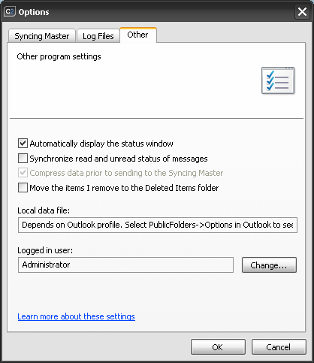 |
| Fig.6. Outlook Add-in settings - Other tab. |

Adding public folders to the Outlook profile
Once the CodeTwo Public Folders Outlook Add-in is installed, the default Outlook profile of the user displays a new C2PublicFolders tree, in which users can create public folders (
Fig.7). To display the C2PublicFolders list, click
Show All Public Folders on the CodeTwo Public Folders toolbar. Alternatively, to display the list of folders in Outlook 2000/XP,
choose
View |
Folder List from the main menu.
In Outlook 2003 choose
Go |
Folder List or press
Ctrl+6:
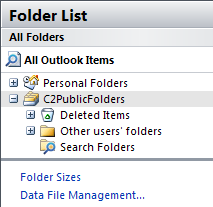 |
| Fig.7. Public Folders on the Folder List in Outlook |
When the software is installed, start Microsoft Outlook using another profile; the software will display the
dialog box asking you whether you want to add public folders to that profile:
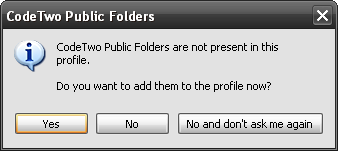 |
| Fig.8. A dialog box asking you whether you want to add public folders to a non-default profile. |
If you click
No and don't ask me again, the public folders will not be added to the profile and
the dialog box won't pop-up anymore. If you want to add public folders to the profile later, follow the tips below:
Outlook 98/2000
| 1. |
Start Outlook using the profile in which you wish to add public folders. |
| 2. |
Choose Tools | Services from the Outlook main menu. |
| 3. |
In the Services dialog box click Add. |
| 4. |
In the Adding a service to the profile dialog box select the C2PublicFolders service and click OK. |
| 5. |
The above-described configuration dialog box of the CodeTwo Public Folders will display. If the name of the computer hosting the Syncing Master is correct, click OK.
|
| 6. |
Click OK to close the Services dialog box. |
Outlook XP/2003/2007
| 1. |
Start Outlook using the profile in which you wish to add public folders. |
| 2. |
In the Outlook main menu choose File | New | Outlook Data File.
or
In the Outlook main menu choose Tools | Options | Mail Setup, click
Data Files and then Add.
|
| 3. |
In the Outlook Data Files dialog box select the C2PublicFolders service and click OK.
|
| 4. |
The above-described configuration dialog box of the CodeTwo Public Folders will appear. If the name of the computer hosting the Syncing Master is correct, click OK.
|
| 5. |
Click Close and then OK. |
Removing public folders from the Outlook profile
If you want to remove public folders from the current Outlook profile, click the right mouse button on the C2PublicFolders folder and select
Close the folder: C2PublicFolders command from the popup menu.