How to create a template with text on the left and image on the right?
Problem:
You want to create a template with text on the left and image on the right.
Solution:
CodeTwo Exchange Rules enables you to create rules including templates.
The template can contain dynamic fields from Active Directory, graphics, and tables. The formatting can be done in the built-in editor. It is also possible to create a template in which the text will be moved to the left of the template while the right part will be taken up by the image e.g. a company logo.
Below you will find a step by step instruction on how to accomplish this task.
- Open the editor and insert the table into the template. Choose the number of columns and rows.
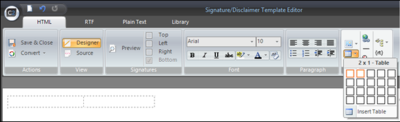
Fig. 1. A table with one row and two columns. - The table will be inserted in the template. Select the small squares are the table extremes to modify the appearance of the table. Click Source to view the source code of the template. Make sure the border of the table is set to zero ( border=0). If the value is 1 or higher the border of the table will be visible in the designer.
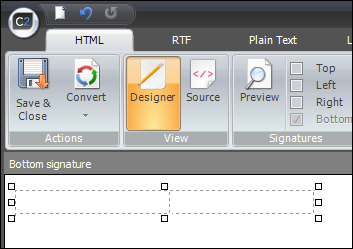
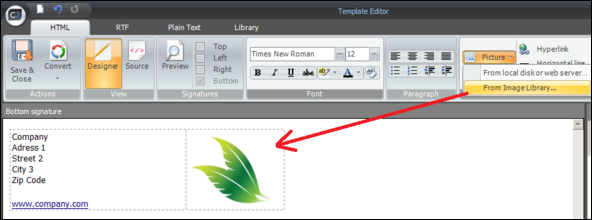
Fig. 2. The table inserted into the table. - Once the table size is set, you can continue to add data to the table. You can use placeholders (dynamic fields) and graphics. To insert images click Picture and choose the location of the image.
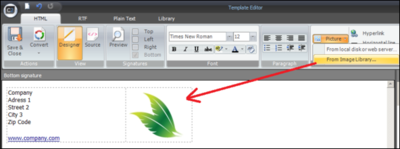
Fig. 3. Graphic elements can be inserted in the table.
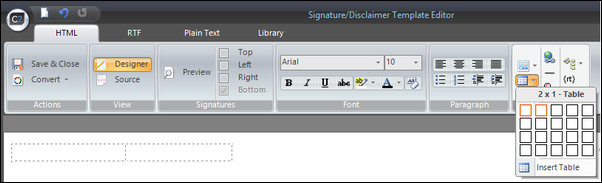
We can experiment with tables and images and create more advanced templates. The purpose of this article was to show how to create a simple template with text and images on opposite sides.
Note: Although it is possible to convert HTML template to plain text format, it will not be possible to keep either the table or the image.
| Related products: | CodeTwo Exchange Rules 2007 2.x, CodeTwo Exchange Rules 2010 1.x, CodeTwo Exchange Rules 3.x, CodeTwo Exchange Rules Pro 1.x |
| Categories: | How-To |
| Last modified: | October 7, 2011 |
| Created: | October 7, 2011 |
| ID: | 204 |





