This tool is deprecated, which means it’s no longer available for download, and we no longer develop, maintain, test, or support it. Because of that, we can’t guarantee it will work properly in your environment. You can see our current software products here.
Choosing a remote machine
In this step (Fig. 1.) you are supposed to choose a remote machine (a second computer) you want to synchronize Outlook data with. All accessible machines from your local network should be displayed in the list. You can either select the desired computer from the list or enter its name or IP address in the field provided and click Connection Test. Once the connection test is successful, click Next.
Tip
If you do not have CodeTwo Outlook Sync program opened, you can run it from Start Menu by opening the CodeTwo folder and choosing Outlook Sync. Please also check if there is an Outlook Sync icon in your tray (the bottom right corner of your screen) - if so, simply click it to restore the program.
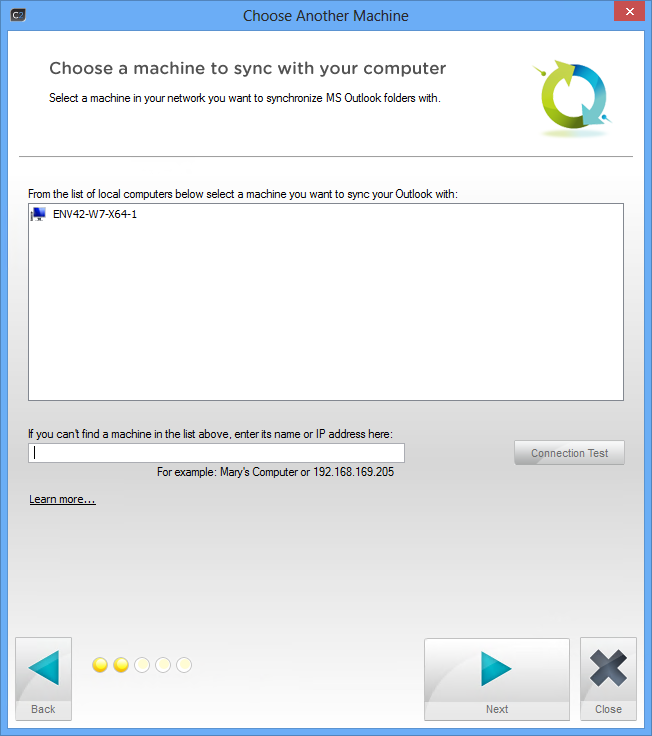 |
| Fig. 1. Choosing a remote machine to synchronize with. |
How to find out your computer's name?
To find out your computer's name, click Start, Control Panel, System. The name of your machine will be displayed in the resulting window (Fig. 2.).
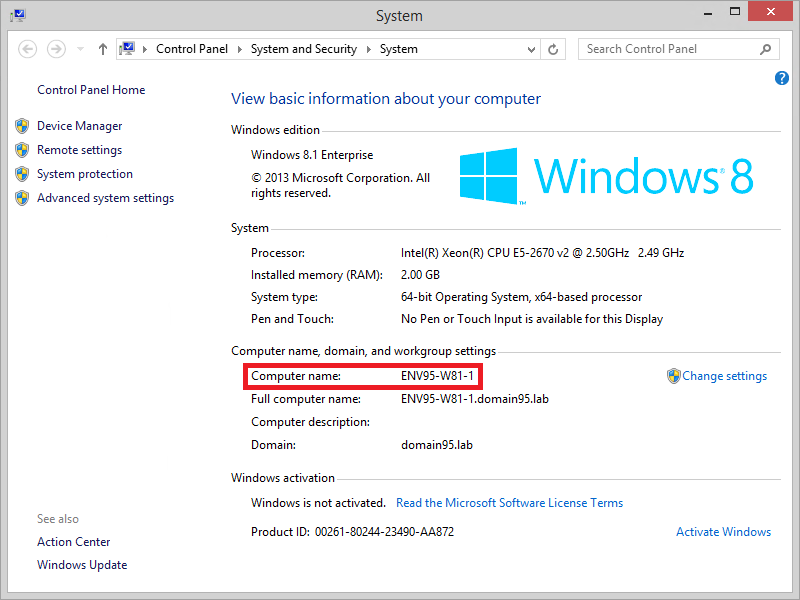 |
| Fig. 2. Checking a computer's name in Windows 8.1. |
If a desired remote computer is not in the list (Fig. 1.) and you cannot connect to it using Other PC's name field, Windows Firewall might be blocking it. Make sure CodeTwo Outlook Sync is allowed to communicate via Windows Firewall. Go to Start, Control Panel, Windows Firewall and click Allow a program or feature through Windows Firewall. Locate C2OutlookSync in the list and allow it for certain location types on both of your machines (Fig. 3.).
 |
| Fig. 3. Allowing CodeTwo Outlook Sync using Windows Firewall. |
If this does not resolve your connection issue, check if your antivirus firewall is not blocking the program.
Find out how to resolve connectivity problems in the program.
See next
Choosing folders to synchronize - in this article you will learn how to choose folders included in the synchronization process.