This tool is deprecated, which means it’s no longer available for download, and we no longer develop, maintain, test, or support it. Because of that, we can’t guarantee it will work properly in your environment. You can see our current software products here.
Choosing folders to synchronize
CodeTwo Outlook Sync allows you to synchronize Outlook PST files between two machines. You can sync both default and non-default (user created, additional) folders in Outlook depending on the program's settings.
Tip
If you do not have CodeTwo Outlook Sync program opened, you can run it from Start Menu by opening the CodeTwo folder and choosing Outlook Sync. Please also check if there is an Outlook Sync icon in your tray (the bottom right corner of your screen) - if so, simply click it to restore the program.
To select folders to synchronize with a second machine, you need to click Sync Options (Fig. 1.)in the top program's menu and select folders either in
 |
| Fig. 1. Opening synchronization options. |
Important: simple and advanced view settings are independent of each other, and the program treats them separately. However, if you start configuring the program using the Simple view and then switch to the Advanced view to add particular folders, the Advanced view settings will prevail and the program will synchronize only the folders selected in the view from which you proceeded earlier.
Simple View (Fig. 2.) lets you choose default Outlook folders such as Calendar, Tasks, Contacts, Journal, Notes, Email including all the subfolders.
 |
| Fig. 2. Choosing folders to synchronize in simple view. |
If you need to sync also additional, non-default Outlook folders, you need to switch to Advanced View by clicking the Advanced View button (Fig. 3.). Advanced View shows a tree of all folders that exist in the current synchronization relationship (between two selected computers).
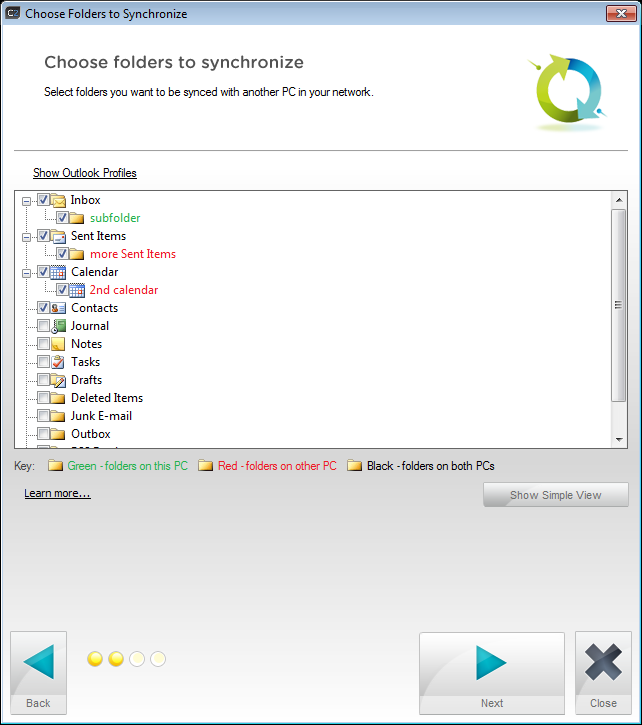 |
| Fig. 3. Choosing folders to synchronize in advanced view. |
All green folders are the ones that are currently present in your Outlook, whereas all red folders are the ones that are currently present in Outlook on the second PC. Black folders are the ones that are present both on your and other PC.
By making your selection in Advanced View, you can choose your folders carefully and have better control over what is synchronized between your two machines and what is not. Advanced View lets you choose both default and non-default folders for synchronization. What is more, you can e.g. select individual default and / or non-default subfolders leaving their parent folders intact. On the other hand, Simple View only allows you to select individual default Outlook folders including their subfolders.
See next
Choosing data synchronization type - this article describes the direction of data synchronization between two machines involved in the synchronization group.