How to speed up an external HDD
Problem:
Your external USB hard disk drive (HDD) works slowly.
Solution:
The default settings of your external HDD make it work slowly. To speed the HDD up, it is necessary to change its current settings to the Performance Mode.
To increase the performance of your HDD, follow the steps below:
- Connect your disk to the USB port.
- Once it is successfully installed on the system, click My Computer, right-click the external HDD icon and choose Properties from the drop-down menu.
- Choose the Hardware tab, which displays the list of all the disks mounted on the machine. Select the disk that you want to speed up and click Properties at the bottom of the window (Fig. 1.).

Fig.1. The HDD properties window.
- In the device properties window, select Change settings on the General tab (Fig. 2.).

Fig. 2. Changing the HDD settings.
- A new window will open. Click the Policies tab and select Better performance (Fig. 3.). Click OK and close the window.
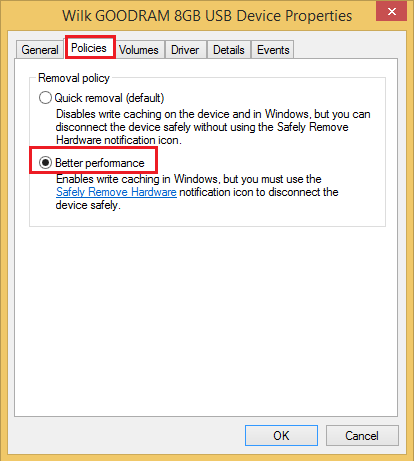
Fig. 3. Changing the HDD policies.
From now on, the disk should work considerably faster.
Please bear in mind that this disk must not be removed by disconnecting the USB cable. It has to be uninstalled first in the following way:
- Right-click thetray icon (Fig. 4.) and click Safely remove USB Mass Storage Device (Fig. 5.).

Fig. 4. The external HDD tray icon.

Fig. 5. Removing the USB device.
- Once the disk is uninstalled, the operating system will display a notification saying that the disk (cable) can be now manually disconnected.

Fig. 6. The notification that it is safe to remove hardware.
| Related products: | General (Microsoft 365, Exchange & more) |
| Categories: | How-To |
| Last modified: | May 2, 2018 |
| Created: | July 21, 2009 |
| ID: | 108 |





