How to make a personal signature template including employee photos
This article is obsolete and may relate only to older versions of our software.
If you use a current version of CodeTwo software, see this article to learn how to add user photos to email signatures.
Problem:
How to make a personal signature that includes employee photos?
Solution:
CodeTwo Exchange Rules can be used to add images to signatures centrally (in Exchange). The image added to a signature or disclaimer does not need to be static – it can be inserted based on the sender, just as Active Directory data is dynamically added to the signature Exchange-side.
Where should the image files/photos be stored?
With CodeTwo Exchange Rules you have three options to add images to signatures:
- The images can reside on a local drive on your Exchange server.
- You can also place the image files not on Exchange server's local drives but instead on another server in the company that will act as the source for image files. This option is frequently used to avoid storing unnecessary data on Exchange servers. See this article to learn more about sharing folders on the network.
- Finally, the images can be hosted on a Web server and accessed via a link. However, we do not recommend using method #3 as the images may not display for some recipients in certain conditions (for example, if the recipient's mail client is set to block external content in messages).
For more information about the advantages and disadvantages of images from local drives and WWW servers, see this article.
How to prepare the images and edit the footer template to enable employee photos in email signatures.
If you want to add user photos that will be dynamically added to an email signature depending on the sender, follow this procedure:
- Go to the location where the images will be stored.
Name the photo image files that will be used by CodeTwo Exchange Rules according to the following name format:
<e-mail address>.<extension of the image file (JPG, JPEG, TIF, PNG, or GIF)>

Example: [email protected]
By doing this you will enable the application to pick the correct image based on the email address of the sender. This is possible because the program is compatible with AD attribute fields (including the e-mail attribute).
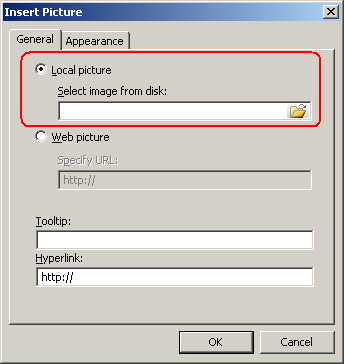
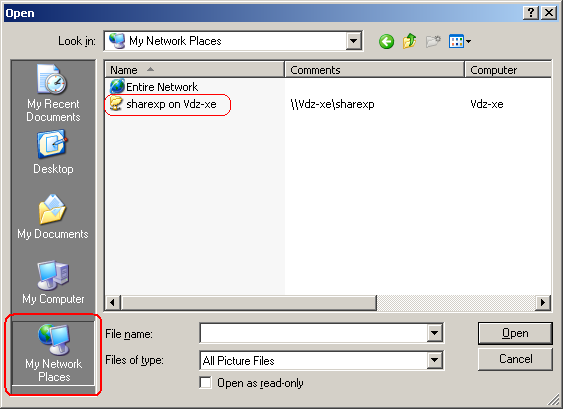
Once you prepare the image files for the users, you can compose a signature template in CodeTwo Exchange Rules. The template that will be used to add images dynamically will be linked to a network disk location. To link it quickly and easily, open the built-in signature editor and use the Insert Picture option (Fig. 1.). Insert a correct path into the template: select Local picture on the editor's ribbon, click the Browse icon, My Network Places, and choose the location where the image files are stored.

Fig. 1. Select Local picture on the editor's ribbon.
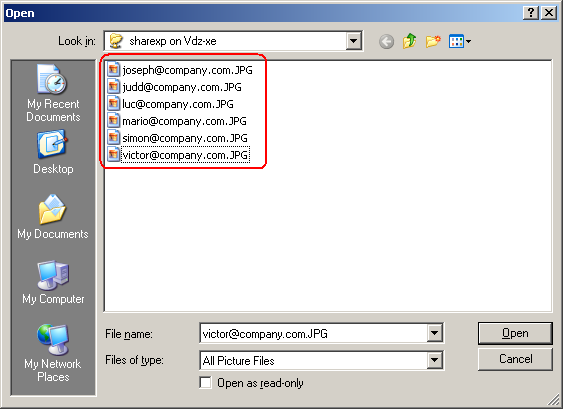
Fig. 2. Choose the location where the image files are placed.Choose any image from this folder (Fig. 3.) and (in the Insert Picture window) replace the email address in the name of the image with the [e-mail] placeholder (as shown in Fig. 4.) because you want the image selected to email signatures to be based on the AD entry in the email field. See the example in Fig. 4. below, where [e-mail].JPG format is used in the template. This is the simplest way to make sure the signature template contains a correct path to the image folder so that the images are seamlessly added depending on the sender’s address.
While connecting an image that is located on a shared drive, you might get a warning message that this is not safe. Please ignore it as it is a remnant of the old version of the program.
Note that once you add the correct path, the template will not display any image in the editor or in the preview mode, because the image is dynamic. The template will show a no-image sign (red cross) at this stage but this is perfectly OK in this case.

Fig. 3. Choose any images.
Fig. 4. Replace the email address in the name of the image with the [e-mail] placeholder.Compose the remaining part of the signature as you want.

You can have more than one image assigned to one user. To prepare more than one image per user you can name them in the following format :
Image #1:
<e-mail address>-1.<extension of the image file (JPG, JPEG, TIF, PNG, or GIF)>
Image #2:
<e-mail address>-2.<extension of the image file (JPG, JPEG, TIF, PNG, or GIF)>
Image #3:
<e-mail address>-3.<extension of the image file (JPG, JPEG, TIF, PNG, or GIF)>
This will be useful if you want to use various graphic content, which is different for each user, in one email signature.
Remember that the image files cannot be stored on a mapped disk i.e. the image cannot reside on X:\pictures\.The allowed location for this scenario is a network disk in the following format: \\srv01\pictures.
See also:
| Related products: | CodeTwo Exchange Rules 2007 2.x, CodeTwo Exchange Rules 2010 1.x, CodeTwo Exchange Rules 3.x |
| Categories: | How-To |
| Last modified: | July 4, 2025 |
| Created: | November 10, 2009 |
| ID: | 119 |





