How to add signatures only to messages sent by selected users
This article is obsolete and may relate only to older versions of our software.
Problem:
How to add signatures only to messages sent by selected users.
Solution:
If you want to do this you need to add these users to the scope of senders for a given rule. Here's what has to be done:
- Open the Administration Panel of CodeTwo Exchange Rules (Pro).
- Create a new rule or edit an existing one.
- The next steps depend on your version of the Exchange Rules software.
If you use CodeTwo Exchange Rules 2013
- Choose the Scope of senders label and set the scope of senders (Fig. 1.).
- Click Finish and then Save the settings.
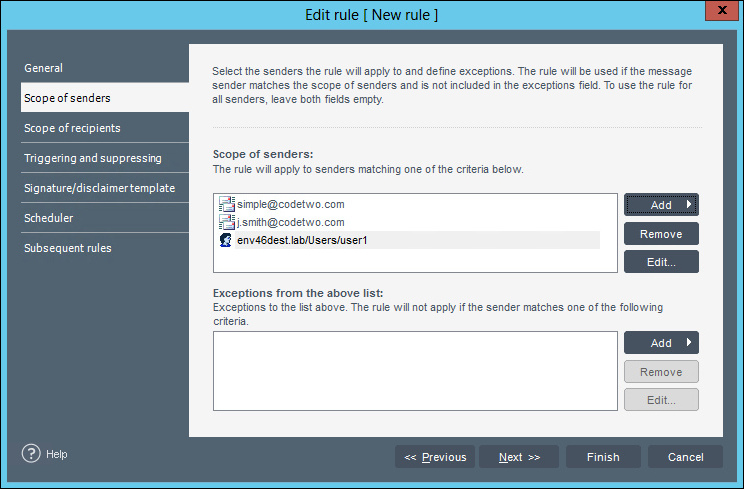
Fig.1. Specifying a scope of senders in CodeTwo Exchange Rules 2013.
If you use CodeTwo Exchange Rules Pro 1.x
- Choose the Conditions label and set the scope of senders (Fig. 2.).
- Click Finish and then Save the settings.
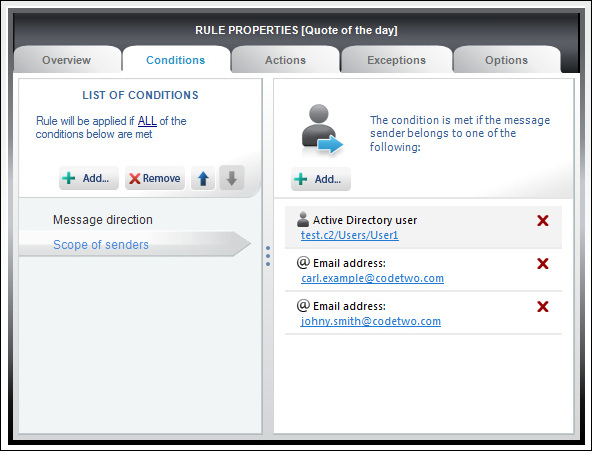
Fig.2. Specifying a scope of senders in CodeTwo Exchange Rules Pro 1.x.
If you use CodeTwo Exchange Rules Pro 2.x
- Choose the Conditions tab and set the conditions in a similar way as shown in Fig. 3. Remember to use the Or operator.
- Use the Submit changes (
 ) button to save the configuration in the Administration Panel.

Fig. 3. Specifying conditions in Exchange Rules Pro 2.x.
From now on, only the users you selected will have signatures automatically added by CodeTwo. Messages sent by others will go via the server intact.
This setting might be useful for companies that want to test the program but have no test environment and are forced to do it on a production server.
| Related products: | CodeTwo Exchange Rules 2007 1.x, 2.x, 3.x, CodeTwo Exchange Rules 2010 1.x, 2.x, CodeTwo Exchange Rules 2013 1.x, CodeTwo Exchange Rules 3.x, CodeTwo Exchange Rules Pro 1.x, 2.x |
| Categories: | FAQ, How-To |
| Last modified: | September 15, 2023 |
| Created: | January 28, 2010 |
| ID: | 133 |





