Modify subject
CodeTwo Exchange Rules PRO can be used to modify the subject of messages on the fly when they are processed by Exchange Server. This is a feature can be useful to tag external messages. When the subjects of messages are properly tagged it is easier to browse and find searched email.
How it works |
How to configure this action |
How it works
Sometimes you would like some messages in your inbox to stand out for some reasons so they are easily distinguished from the other. Typically you will need to do it manually in your email client by using categories or flags etc. (Fig.2.). With CodeTwo Exchange Rules PRO you can activate a server-sided rule that will modify subjects of messages that match the defined criteria (Conditions). They will be modified on the fly when they are processed by Exchange so they are easily visible in your inbox (Fig.2.).
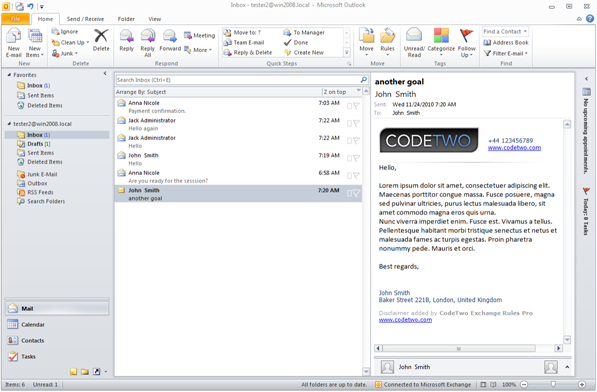 |
| Fig.1. Standard list of messages when no rule is applied. |
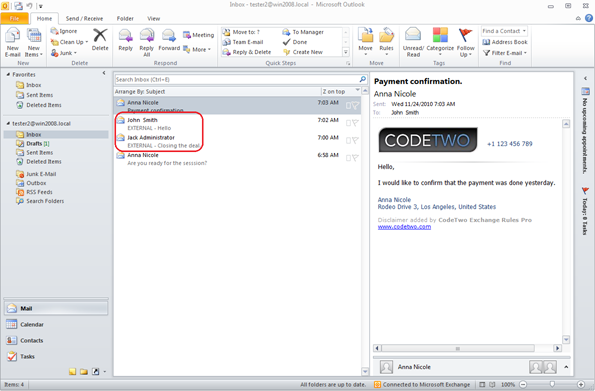 |
| Fig.2. List of messages after modifying th subject. |
Click the following link to learn more about how to configure the Subject modifier rule.
How to configure this action
To use the action click Add in the Actions tab and select Modify subject from the menu (Fig.3.).
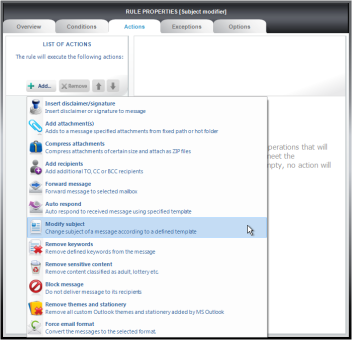 |
| Fig.3. Choose Modify subject in the Actions tab. |
The List of actions will show a new action named Modify subject while the right pane will show the properties dialog box (Fig.4.).
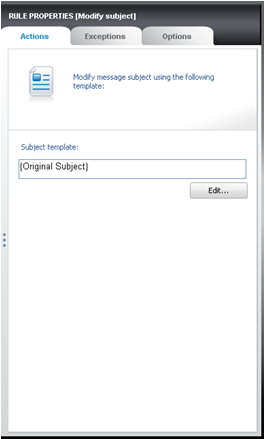 |
| Fig.4. Properties pane for Modify subject. |
Click the Edit... button to define the text added to the original message subject or replace the original subject completely (Fig.5.).
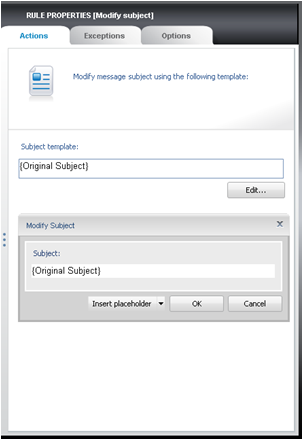 |
| Fig.5. Edit dialog box for the Message subject. |
It is also possible to modify the subject dynamically by using the so called Placeholders from the Sender properties menu. Placeholders retrieve data from Active Directory to fill out the templates (Fig.6.). The Original subject field is used to insert the original subject of the processed messages.
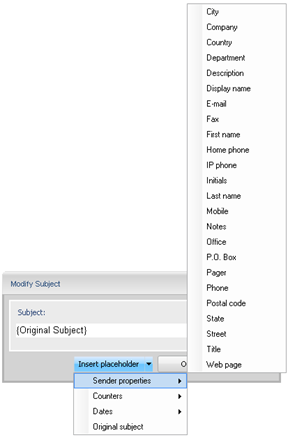 |
| Fig.6. Active Directory fields menu. |


