synchronize outlook

CodeTwo developers have just finished working on several improvements in CodeTwo Outlook Sync, one of our Outlook synchronization plugins. The newest build of the program, version 1.0.9, has successfully passed all necessary tests and is from now on available on our website. Grab it now and update your CodeTwo Outlook Sync for free! Here is the full list of changes in version 1.0.9: New: Connecting is seen when the computer is attempting to connect to another machine.
New: The link to the user manual is located under the Help menu.
Fixed: In the edit window showing synchronized folders the current profiles are shown.
Fixed: In certain cases the program failed to discover that an item was deleted and restored it to the folder.
Fixed: The stability of the peer connection has been improved. In the previous version, online/offline status tended to flicker.
Fixed: Names of subfolders were incorrectly detected if the only difference in their names was character capitalization.
Fixed: Improvements to User Interface. These are the minor improvements users requested from us during the past weeks. Thank you for all your bug reports and feature requests guys! For those of you who don't know CodeTwo Outlook Sync yet, here's a short walk-through of its features: See version history for CodeTwo Outlook Sync
How to update CodeTwo software
As the world’s favorite mail client, Microsoft Outlook is used in many scenarios, equally by students, small business sector and large companies all over the globe. It is perfect for organizing your mail, keeping track of calendar entries and works fine as a contact manager too. In larger organizations Outlook is often a part of a larger collaboration system. The Exchange Server – Outlook partnership enables co-workers to share Outlook folders between them and that makes them work faster and more efficiently. But what if I have to share Outlook only between two machines, e.g. a desktop and a laptop? Do I have to invest money in expensive server-based platforms in order to synchronize only two PCs? Obviously not. Internet is full of various third party solutions designed for Outlook synchronization. If we take a closer look at them, most of these applications are outdated and do not support the latest editions of Outlook. The other ones are simply too complicated for a person who is not an IT specialist. Luckily a brand new solution has been developed by CodeTwo recently. It is called CodeTwo Outlook Sync, it’s for free, works with all the latest versions of Outlook and even a child would know how to use it. What is more, there’s no doubt CodeTwo Outlook Sync is a high-quality software, since it was developed by a company that holds several Microsoft certificates and is well experienced in creating reliable Outlook add-ins.
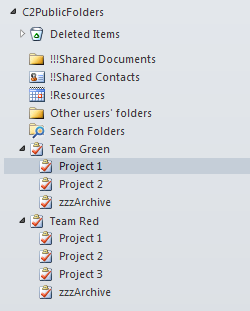
CodeTwo Public Folders is a versatile collaboration tool for Microsoft Outlook users that enables sharing all Outlook items across local network and between multiple PCs. It allows companies of small and mid sector to save a lot of money on IT services, since no server deployment and maintenance is required in this case. For less than $500, an average office can get a professional collaboration system that streamlines teamwork in Microsoft Outlook and makes every employee work faster and more efficient. See the video below to get a grip of how it works: In this article we will cover only a small selection of possibilities this program gives you and we will explain how to improve project management and work efficiency while working on tasks in Microsoft Outlook. Step 1: Arrange the folders in Outlook Let's start with building the right Outlook folder tree structure. As you can see in the picture above CodeTwo Public Folders lets you create public folders in the exact same way as it is done with private items. Every folder appearing in the C2Public Folders section is by default visible to all users in the network. If the access rights are not changed by the administrator, users can read, modify and delete public folders whenever they want. What's more all changes are synchronized with other machines in real time. Step 2: Assign smaller tasks to team members In this example we have split the whole office into two teams: Team Green and Team Red. Every team has its tasks grouped in projects and assigned to team members. The advantage of this method is that every project can be divided into smaller stages (tasks). This organizes teamwork in a better way and results in good job performance and quality. Step 3: Keep a diary of your work Thanks to CodeTwo Public Folders team members and managers can monitor the progress of the given project, since all changes are replicated to other machines in real time. Team members only need to update the status of a given assignment and keep a log of everything what's completed within the task (as shown below). Note that all data is synchronized together with the task, including documents and other files attached by users. Step 4 (optional) Set access rights for public folders in Outlook This collaboration model can also be enriched with access rights set up allowing team leaders to decide who can view, edit or delete Outlook items synchronized with CodeTwo Public Folders. These settings are easily accessible from the machine equipped with the Syncing Master module - a sort of brain in every CodeTwo Public Folders network. Learn more about the Administration Panel of CodeTwo Public Folders Try out for free If you want to test these settings live, feel free to evaluate the program at no cost. The 30-day fully functional trial version of CodeTwo Public Folders is available at www.codetwo.com. More about CodeTwo Public Folders
See how to install the program
Other Outlook and Exchange addins by CodeTwo
CodeTwo Home

We wouldn't be ourselves if we hadn't fixed an issue with a 3rd party product and then shared it with the world. Many of our tools were initially created solely for our own needs, tested by us in a live environment as we grew from a small business to what we are now, and then turned into products that many of you use today. So... here we come with another tool for Outlook and iPhone/iPad aficionados. We've heard from our fellow users that the iCloud feature from Apple™, which is meant to synchronize Outlook with iCloud, iPhone, iPad and other iCloud-compatible devices, is a great tool but does not really sync the stuff that you already have in Outlook but creates another set of folders. To delve into the problem, we started using iCloud Control Panel together with Outlook for our own needs and soon we realized that our Outlook synchronization algorithms can quickly fix the issue. That's how we came up with this: CodeTwo Sync for iCloud enables you to automatically synchronize Microsoft Outlook folders with iCloud folders - the rest is in done by iCloud itself. The program will let you seamlessly synchronize Outlook calendar, tasks and contacts with your smartphone. And, as always, it's easier and faster than you can imagine. Just check it out for yourself:Learn more and download CodeTwo Sync for iCloudCodeTwo's Official Website

We're happy to announce that the latest version of CodeTwo Outlook Sync, an Outlook add-in synchronizing Outlook between two computers, has been just released. The first version of CodeTwo Outlook Sync took its first breath just few months ago, and since then the program has become one of the most popular CodeTwo Outlook extensions. We're extremely happy so many of you use it either as freeware or full version. We'd also like to say thank you for contacting us and letting us know about bugs and features you dislike. Since we listen to our customers and, naturally, we want them happy, the latest release of CodeTwo Outlook Sync (1.0.6) fixes a number of issues reported by our customers. We changed the way the program works in freeware mode - now you can use it as a full version for 30 days, and then it switches to demo mode still allowing you to sync default calendar and contacts in Outlook between two machines. We've also introduced a duplicate item warning. The other fixes are as follows: In certain circumstances, when the program icon was clicked in the system tray, the sync wizard was not displayed correctly.
In certain circumstances the program displayed incorrect information on the online status of the remote computer.
The program incorrectly communicated the offline status to a remote machine.
Improved mechanism of connecting computers – it is possible to connect computers by computer name and IP address.
In certain circumstances the Autosync function got looped or was abruptly stopped.
Sometimes Autosync function was not started. Updating the program is free of charge for all CodeTwo Outlook Sync users. Just install the program on top of the existing installation - all your settings will be kept safe. If you've just stumbled upon this post accidentally and want to find out more about CodeTwo Outlook Sync, take a look at this short video presenting how to quickly sync Outlook between two machines. There are lots of ways you can utilize CodeTwo Outlook Sync: sync Outlook between home desktop and laptop;
sync Outlook between you and your wife, mother, father, uncle or whoever you are close to;
share Outlook with your boss, secretary or co-worker;
let your cat and dog share Outlook files... ok maybe I went too far here ;) Learn more about CodeTwo Outlook Sync
Download CodeTwo Outlook Sync
CodeTwo