Outlook

Have you ever tried to buy a TV using Internet? If yes, than I assume what dilemmas came across your mind. What brand to choose? Should it be big or small? HD Ready or Full HD? What is HD actually?? Too many questions at once. Why not visit a proper discussion on the Web? There must be someone, who came through all of this before you:) Here at CodeTwo, we know exactly how using different software can be difficult to users. We have learned it especially from our Technical Support experience. That's why we've created Oulook-center.com - the online encyclopedia for all Microsoft Outlook topics. A place where all MS Outlook users can share tips, advises and solutions to the issues that bother their minds. After joining the Forum, not only will you get the access to the instructive discussions but you will also become a member of a wide community of Outlook users who share their knowledge with others. Of course we won't leave you alone with your problems. Our experts are always willing to answer your posts on the Forum. So... Why wait any longer? Go to OutlookTalk.com.

Towards the end of April Microsoft released Service Pack 2 for Microsoft Office 2007. The release of the Service Pack 2 meant we needed to test CodeTwo Public Folders against it. Thorough tests performed by our lab proved the application to be 100% compatible. The results of our test are reinforced by customer feedback who experience no issues whatsoever after upgrading with the Microsoft's patch. CodeTwo Public Folders HomePage

If your company uses a single POP3 email account for receiving general inquiries from customers and business partners, you'd probably like to know how to make it accessible for a larger group of employees via Microsoft Outlook. In this short tutorial I will show you how to create a shared company Inbox in Outlook without investing huge sums of money in servers and costly server-dedicated software. All you need to achieve this goal is the free trial version of CodeTwo Public Folders installed on all machines in your office. To cut a long story short, CodeTwo Public Folders lets you create public folders in the Outlook folder tree that can be easily accessed by your office-mates from other PCs. It also allows sharing private Outlook folders with others and set detailed access rights for all shared items. Today we will cover only a small selection of use cases that this powerful collaboration tool has - a shared company inbox. If you already have CodeTwo Public Folders installed on all machines in your network, we can move on to configuring the shared inbox. Step 1 Choose one workstation in the office that will be responsible for receiving mail from your general email address (e.g. [email protected]) and configure an Outlook account on it that will use the general email address. If you need any help with configuring a POP3 account in Outlook, you can use a free tool by CodeTwo, CodeTwo Outlook AutoConfig that will do it for you automatically. Step 2 Create a public mail folder in the C2PublicFolders folder tree that will receive data from your general email address and act as a common Inbox. Step 3 Create a new rule in Outlook that will move all received messages from the default Inbox to the public mail folder created in the previous step. Step 4 (optional) In the Administration Panel of CodeTwo Public Folders set access rights for the common Inbox according to your needs. The Administration Panel is located on the machine equipped with the Syncing Master. You will find it in the Windows Start Menu. Ok, that's it. Now all messages sent to your company's general email address can be read and processed by all employees in the network, even though they use their individual email accounts in Outlook. All messages received by the PC configured in Step 1 will be synchronized in real time and visible in the common Inbox on all other machines. You can also choose to extend this feature by installing CodeTwo CatMan, the free Outlook category manager that will allow your workmates to assign statuses for messages, e.g. pending, processed etc. For more details watch the CodeTwo CatMan video: The example described in this article is only one of many team work scenarios that can be applied using CodeTwo Public Folders. For more examples of application see the CodeTwo Public Folders product page. Learn more about CodeTwo Public Folders
Read about creating a common Inbox in CodeTwo Public Folders Manual
Download CodeTwo Public Folders 30-day trial
See free tools for Outlook by CodeTwo
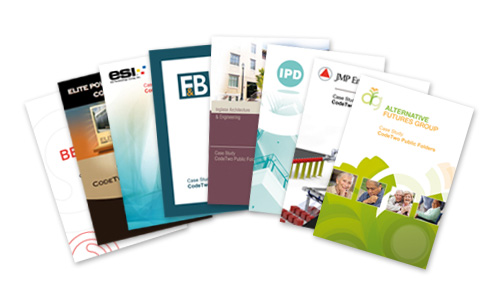
CodeTwo software solutions are inspired by users' individual needs as well as our personal experience. Our main goal is to create usable applications that simply solve users' problems instead of creating new issues for them. We do have our own imagination of how our programs function in customers' environments but we also like to verify this vision with real-life examples. That's why we have recently interviewed some of our customers - to find out how they utilize our programs and what problems they faced prior to installing CodeTwo software. All these individual stories can now be found in the Case Study section on each product page, but let's take a look at a short summary here.

UPDATE: We are sorry, but CodeTwo Public Folders mentioned in this article has been discontinued. You can check the list of currently available CodeTwo products here. If you already use CodeTwo Public Folders for sharing Outlook folders between many computers, or are on an Exchange Server account with some public data stored in the Exchange public folders, you have probably already noticed that Outlook categories are not synchronized by means of these solutions. Luckily, there’s an easy way to sort it out. Long story short, all you have to do to solve this problem is equip your Outlook with a free extension called CodeTwo CatMan, the rest is very easy…
CodeTwo CatMan is a smart FREE Outlook add-in that allows sharing Outlook categories across many computers via a local connection or through the Internet. The program can be downloaded at no cost from www.codetwo.com.

Greetings! It's been a few weeks since the release of the first version of CodeTwo Sync for iCloud - a program designed for synchronizing iCloud and Outlook. We've reported thousands of downloads so far and have received lots of emails from users like you. You have our sincere thanks! Based on your remarks and comments, we updated the program. The latest release (v. 1.2) has a new feature that automatically hides calendar reminders for iCloud folders. We've also blocked an option that enabled a user to use the same folder in different synchronization pairs. Take a look at the list of other bug fixes: Improved edition of synced items. Fixed issue with deleted attachments reappearing in Outlook. The "Sync with iCloud..." option in the context menu is no longer available for folders that cannot be synced with iCloud. Fixed identification of deleted sync folders. Updating is naturally free of charge. Just download the program from here, launch the installer and follow the wizard. There is no need to uninstall the previous version. All your settings and sync associations will not be changed. Should you have any questions feel free to post them in the comments or contact Support directly. We're here to help all the time. Download CodeTwo Sync for iCloud here. Oh and take a look at this great video that we made some time ago ;)
We have released a minor update versioned 4.5.9 to CodeTwo Public Folders, an Exchange Server alternative to share Outlook data. It includes among others the following fixes: In some cases, a licensed program reverted to demo mode.
All items in shared folders were duplicated when a user had more than one Outlook profile.
Improved user identification system. In some cases, two different users having the same user and computer names were able to connect to the Syncing Master. In this new version, users can decide if all removed items are moved to the Deleted Items folder or deleted irrevertibly. By default, all deleted elements are deleted permanently. You can read more about the fixes to CodeTwo Public Folders on the version history page. The update is free of charge for all users. To update the currently used version with the fix, download and run the installer. The previous version will be automatically detected and patched. Detailed information on the update procedure can be found here. Download the latest fix for CodeTwo Public Folders CodeTwo Public Folders Homepage
We have released a minor update to CodeTwo Public Folders, a cost effective Exchange Server alternative designed for sharing Outlook folders between multiple users. The latest version (4.6.2) has an improved activation and licensing mechanism. We recommend all users to download and install the latest fix. The update is free of charge for all current CodeTwo Public Folders users. To update the currently used version, download and run the installer. Note that first the Syncing Master has to be updated, then the same procedure has to be applied to each of the Outlook Add-ins. Detailed information about upgrading the program can be found here. Download the latest fix for CodeTwo Public Folders
CodeTwo Public Folders Homepage
CodeTwo Public Folders Version History
CodeTwo Home
