outlook 2010

Sometimes there is a need for additional protection of your private messages from other people. There may be plenty of reasons for that - from private ones, like writing a personal letter to a close friend or telling your family where you usually keep your keys, to more formal and serious situations, like mailing a check to pay a bill. Whatever the reason, encrypted e-mails are like sealed envelopes, as opposed to the postcard-like availability of unencrypted e-mails.
Option and menu names and locations used in this article are identical for Outlook 2019, Outlook 2016, Outlook 2013 and Outlook 2010.

I remember when I first installed Office 95 and admired its features with a smile on my face (just like Doc Brown who discovered time travel) - it was over 15 years ago. I mainly used Word 95 then since I did not need Outlook yet. Comparing it to other applications available at that time, it was simply mind-blowing. A few weeks ago I installed Microsoft Office 2010 together with Outlook 2010. To put it bluntly, I was expecting Office 2010 to be a total swizz - another badly written piece of software and a product for those who need to buy upgrades or else they will have sick headaches. It installed pretty quickly and I launched the most important application for me - Outlook 2010. My jaw didn't drop as low as 15 years ago but probably because I'm older now and very unemotional when it comes to trying new things. It is still Outlook and it still does the same things. There are, however, some improvements:
We are happy to announce that CodeTwo CatMan, the free Outlook add-in from CodeTwo designed for sharing Outlook categories in a network of multiple users, has been updated to version 3.2.0. It is now full compatible with Microsoft Outlook 2010 64-bit. We encourage you to download it for free from our website. Thanks to CodeTwo CatMan you will be able to share Outlook categories to all your teammates. Using the program, it is possible to divide Outlook categories into two groups: public and private. All changes to public items are saved to an external TXT file placed on the network drive or a WWW/FTP server, which is monitored by every mail client connected to the network. Owing to this, any time one of the public categories is added, deleted or modified, data on the TXT file is updated accordingly and then changes are applied on each of the linked workstations. It is not necessary to finger-type the changes on every single computer anymore. CodeTwo CatMan helps to organize groupwork in a better way and save a lot of precious time. Feel free to download the program for free from our website. If you are interested in an application giving more Outlook sharing abilities, learn more about CodeTwo Public Folders - the most powerful Microsoft Outlook sharing plug-in from CodeTwo. Download CodeTwo CatMan
Read more about CodeTwo Public Folders
More about CodeTwo freeware
More about CodeTwo products
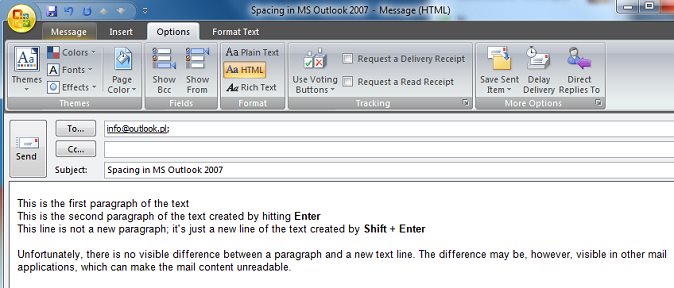
Users of Microsoft Outlook 2007, 2010, 2013 or 2016 often complain that the recipients of their emails say they contain double spaces between lines. This situation may happen in HTML formatted e-mails making the message look unclear and scruffy.
The reason is the way the new Outlook handles new line tags in HTML messages. It is generally accepted in word processors that the Enter key starts a new paragraph while hitting Shift + Enter starts a new line of the text. The difference between starting a new paragraph and proceeding to the next line may seem subtle, still, it is important and known for a long time. The spacing between paragraphs is usually bigger than the spacing between regular text lines. In HTML <p> tag is used to start a new paragraph, whereas <br> tag to move one line down.
Unfortunately, Outlook 2007, 2010, 2013 as well as 2016 violate this rule and, from the perspective of a user writing a new message, there is no difference if they hit Enter, or Shift + Enter. The result is the same, the word processor behaves as if proceeding to the next line, whereas when we hit Enter the <p> marker is being inserted, which means the actual beginning of a new paragraph. However, when we hit Shift + Enter, the <br> tag is inserted, which means proceeding to the next line. Inserting the <p> tag and the <br> tag looks the same to the user, which is caused by the way Outlook 2007, 2010, 2013, 2016 CSS style sheet was developed.
Because there is no noticeable difference between inserting a new paragraph (see image below), and proceeding to a new line, users often hit Enter twice to get the effect of a new paragraph with spacing they are used to from other word processors, including Microsoft Word 2007, 2010, 2013 or 2016, which is an integral part of Microsoft Office 2007, 2010, 2013 or 2016. As a result the users insert double paragraphs to their e-mails, which means two <p> tag (<p><p>) instead of a single <p> tag, or hit Enter instead of Shift + Enter to go to the next line - as a result they insert the <p> tag instead of <br>.
The problem appears when a recipient uses a mail reader which doesn't support complex CSS style sheets used by MS Outlook. And there is quite a number of such readers.
Personally, I have no clue what pushed the makers of Microsoft Outlook 2007, 2010, 2013 and 2016 to the idea of treating a new paragraph and proceeding to a new line, differently from other mail software makers, and differently from what is generally accepted and to which users are accustomed. What can Outlook users do to make their e-mails look the same on their and their recipients' computers? There is a number of possibilities, and everyone can choose the most convenient one, though each of the solutions has some drawbacks.
First solution
The first solution is to always use Shift + Enter when proceeding to the next line or next paragraph. In order to proceed to a new paragraph, users will need to hit Shift + Enter twice. The drawback of this solution is that text formatting, such as indents or bullets, is based on paragraphs, and if we want to use this type of formatting, we will still have to create a new paragraph hitting Enter, because double-hitting Shift + Enter inserts two <br><br> tags instead of <p> tag, which in HTML stands for a paragraph.
Second solution
If you want the Enter key to insert a new paragraph which will in fac
We have released a minor update versioned 4.6.0 to CodeTwo Public Folders, an Exchange Server alternative to share Outlook data in real time and between multiple users. The latest version of the program has been tested compatible with Microsoft Outlook 2010 64-bit. For the complete list of changes see below: New: The program is available in 64-bit version.
New: It is fully compatible with MS Outlook 2010. The application can be installed onto any MS Outlook 2010, both 32x and 64x.
New: German version of the program has been developed. In addition, the update fixes the following minor issues that occurred previously: The program synchronized all items of a shared folder of other user repeatedly causing the PST file to grow each time.
The program did not work correctly if Outlook was opened in minimized mode.
If multiple network cards were used by the same machine, the program returned a licensing error. The update is free of charge for all users. To update the currently used version with the fix, download and run the installer. The previous version will be automatically detected and patched. Detailed information on the update procedure can be found here. Download the latest fix for CodeTwo Public Folders
CodeTwo Public Folders Homepage