message
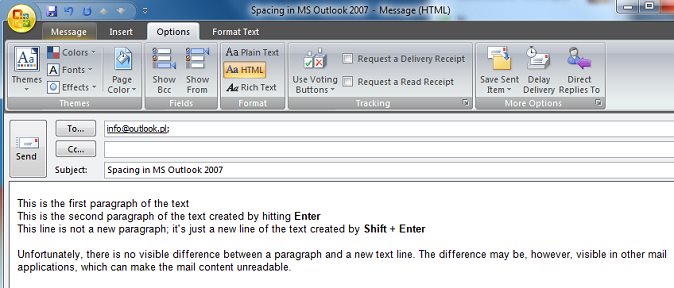
Users of Microsoft Outlook 2007, 2010, 2013 or 2016 often complain that the recipients of their emails say they contain double spaces between lines. This situation may happen in HTML formatted e-mails making the message look unclear and scruffy.
The reason is the way the new Outlook handles new line tags in HTML messages. It is generally accepted in word processors that the Enter key starts a new paragraph while hitting Shift + Enter starts a new line of the text. The difference between starting a new paragraph and proceeding to the next line may seem subtle, still, it is important and known for a long time. The spacing between paragraphs is usually bigger than the spacing between regular text lines. In HTML <p> tag is used to start a new paragraph, whereas <br> tag to move one line down.
Unfortunately, Outlook 2007, 2010, 2013 as well as 2016 violate this rule and, from the perspective of a user writing a new message, there is no difference if they hit Enter, or Shift + Enter. The result is the same, the word processor behaves as if proceeding to the next line, whereas when we hit Enter the <p> marker is being inserted, which means the actual beginning of a new paragraph. However, when we hit Shift + Enter, the <br> tag is inserted, which means proceeding to the next line. Inserting the <p> tag and the <br> tag looks the same to the user, which is caused by the way Outlook 2007, 2010, 2013, 2016 CSS style sheet was developed.
Because there is no noticeable difference between inserting a new paragraph (see image below), and proceeding to a new line, users often hit Enter twice to get the effect of a new paragraph with spacing they are used to from other word processors, including Microsoft Word 2007, 2010, 2013 or 2016, which is an integral part of Microsoft Office 2007, 2010, 2013 or 2016. As a result the users insert double paragraphs to their e-mails, which means two <p> tag (<p><p>) instead of a single <p> tag, or hit Enter instead of Shift + Enter to go to the next line - as a result they insert the <p> tag instead of <br>.
The problem appears when a recipient uses a mail reader which doesn't support complex CSS style sheets used by MS Outlook. And there is quite a number of such readers.
Personally, I have no clue what pushed the makers of Microsoft Outlook 2007, 2010, 2013 and 2016 to the idea of treating a new paragraph and proceeding to a new line, differently from other mail software makers, and differently from what is generally accepted and to which users are accustomed. What can Outlook users do to make their e-mails look the same on their and their recipients' computers? There is a number of possibilities, and everyone can choose the most convenient one, though each of the solutions has some drawbacks.
First solution
The first solution is to always use Shift + Enter when proceeding to the next line or next paragraph. In order to proceed to a new paragraph, users will need to hit Shift + Enter twice. The drawback of this solution is that text formatting, such as indents or bullets, is based on paragraphs, and if we want to use this type of formatting, we will still have to create a new paragraph hitting Enter, because double-hitting Shift + Enter inserts two <br><br> tags instead of <p> tag, which in HTML stands for a paragraph.
Second solution
If you want the Enter key to insert a new paragraph which will in fac
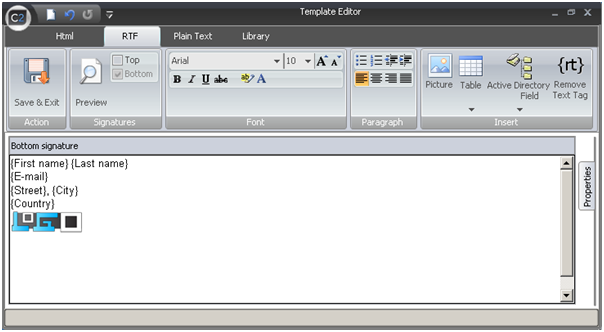
Our newest program CodeTwo Exchange Rules Pro is getting more and more of your attention, so we've decided to post practical tips regarding its functions. We want to tell you about some of the useful features this powerful email management software offers, and which may be not obvious for first-time users. Let's focus today on Active Directory dynamic fields. What are dynamic fields? They are placeholders of our personalized email signature template referring to particular information, such as message sender details, images, message subject or even current date. So why do we call them 'dynamic'? It's because they dynamically retrieve data from Active Directory, from a location on the hard drive (images) or from message properties.