how to
Option and menu names and locations used in this article are identical for Outlook 2019, Outlook 2016, Outlook 2013 and Outlook 2010.

It is not that difficult to create a rule on Exchange forwarding all emails (e.g. sent to a given user) to a different user. But if the forwarding address is an external one, you first have to create a mail-enabled contact on Exchange or a separate distribution group for it. So... If someone comes to you with this type of request: "I'm off for the next 5 days, please forward important messages to my Gmail account", what will you do?
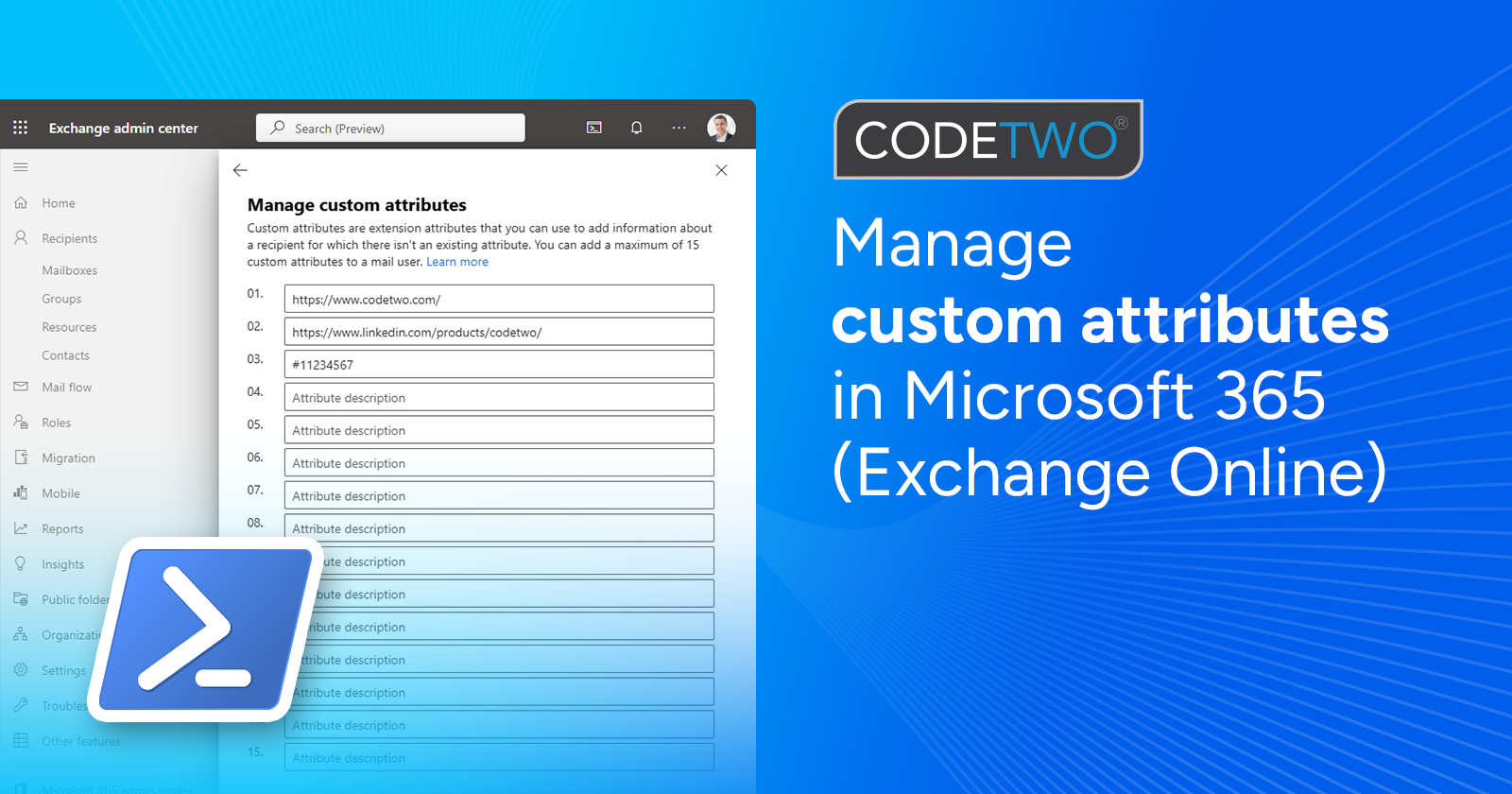
Custom attributes in Microsoft 365: learn what they are and see some real-life examples of how to use them.

If you setup an Exchange account in your mobile phone or tablet, you will be able to view your own Exchange mailbox but you will not be able to sync your device with any public folders on Exchange Server. It's a common problem many smartphone users encounter every day. If you need to access your company's Exchange databases, such as calendars or contacts, and then synchronize them with your mobile device to stay on top of everything, you will not be able to do it using Exchange Server native capabilities. Unfortunately, the most popular handhelds such as iPhone, iPad, BlackBerry or Android cannot be synchronized with public folders of Exchange Server unless you resort to doing a little trick. You can use a third party solution from CodeTwo. It's called CodeTwo Exchange Sync and it lets you automatically synchronize data between your personal Exchange mailbox and public folders on Exchange Server. Once your data is finally located in your mailbox, you can easily synchronize it with your smartphone using its native software. By doing so, you will always have the same amount of the most up-to-date data in your personal mailbox and in your mobile device as well: CodeTwo Exchange Sync can be installed either directly on server or on any PC in your Exchange environment. Its simple and intuitive user's interface will let you quickly configure synchronization tasks, which will be performed by the program automatically and in real time. All your synchronization tasks are located on the left hand side in the program's pane: CodeTwo Exchange Sync has various synchronization options. You can sync your folders using the following methods: one-to-one - one way synchronization
one-to-many - one way synchronization
many-to-one - one way synchronization
folder ring - two way synchronization One-to-one synchronization will let you e.g. automatically update all shared company contacts to your private contacts folder. However, all changes in your personal contacts folder or in your mobile device will not be propagated to the shared company contacts folder: If you select a folder ring method, you can sync two (or more folders) in a two way mode. It means that any changes in any folder are propagated to all folders included in the synchronization task. In other words, if you create a folder ring synchronization task for shared company contacts, your personal contacts folder and your friends' contact folders, any changes made on your folders and mobile devices will be propagated to every folder. All in all, each folder will be a mirror of every other folder in this synchronization task: CodeTwo Exchange Sync is not only designed to let you share data between mobile devices and Exchange Server. It's ability to synchronize Exchange Server folders with private mailboxes in any mail client connected to Exchange gives you a number of collaboration possibilities. You can e.g. create a common company's calendar containing appointments entered by any group of employees. What is more, filtering and modifying tools in the program are able to mark each synchronized item on the fly to make it unique and recognizable in the group of other items (e.g. by adding the Source Folder Name or Source Mailbox Name to the subject): CodeTwo Exchange Sync can be downloaded from our website and tested for free for 30 days. The program is easy to use and can be implemented in your organization within a few minutes. Take the CodeTwo Exchange Sync tour for genera
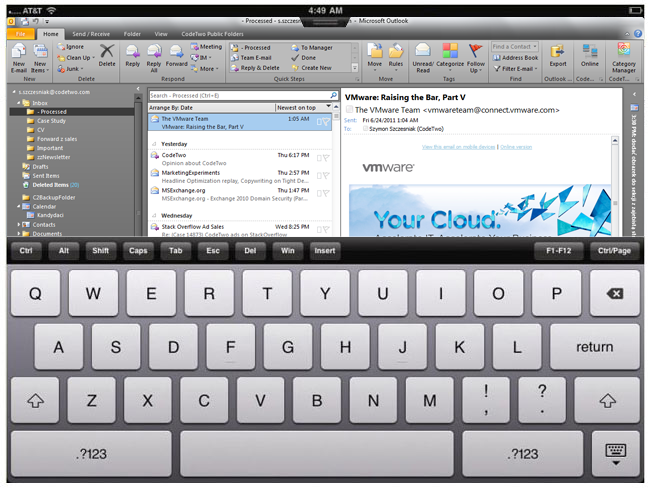
Since the world of tablets is getting bigger, better and more versatile, many of us (iPad aficionados and those who are now becoming ones) ask a question: Can I run Outlook on the Ipad? Well.. it would be a Sci-Fi question, if it wasn't for VMware View, thanks to which you can have Outlook displayed in the iPad or iPad 2 totally for free. VMware has finally made it possible to access your Windows Desktop from the iPad, which means you can not only display your favorite mail client there, but also use your tablet as a remote client of your desktop machine. If you don't want to use any remote desktop connections and want to simply synchronize your iPad with Outlook, you can do it pretty easily with the iCloud service and its iCloud Control Panel for Windows, which allows you to share Outlook data with iPad automatically. The iCloud-Outlook synchronization is, however, a little bit tricky as upon installing the control panel you get a new tree of folders in Outlook with your iCloud data. This has little to do with syncing as your master folders are still left intact. You can luckily fix this thanks to CodeTwo Sync for iCloud. See for yourself how easy it is: Learn more about CodeTwo Sync for iCloud and download it. © All rights reserved. No part or whole of this article may not be reproduced or published without prior permission.
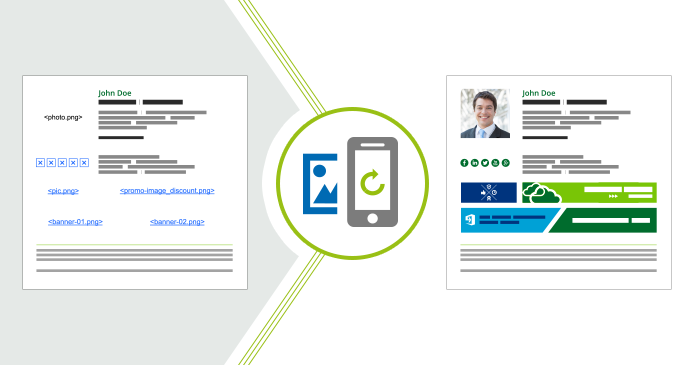
Do you use pictures in your emails? Most people do. Did you know that there is a problem you might face if you use iOS devices like iPhone or iPad? Whenever you reply to a message or forward it using such a native mail app, graphical elements such as pictures, logos or banners get deleted. That is a default behavior for iPhones and iPads, but there is a solution which works on Exchange Server. Why are images deleted from iPhone or iPad?
That is just the default behavior in native iOS mail app to delete images from email body when you reply to a message. It might be a way to declutter mailboxes and to save some space. Maybe it is designed that way because the original recipient has already seen the images. Although this might be found as perfectly logical, for some it is a twisted logic as it makes doing your job harder.
Here is yet another video tutorial on how to setup or change an email signature. This short guide answers the question of how to set up email signature in Outlook on the Web (previously known as Outlook Web App or OWA).