email signature
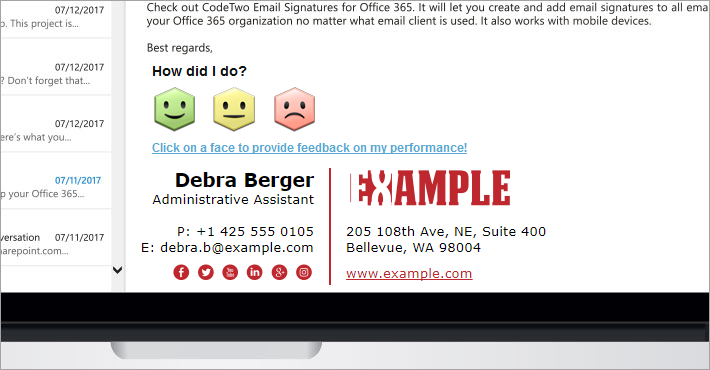
CodeTwo email signature management tools let you measure the satisfaction level of your customers. Thanks to an easy integration with one-click survey services, each email you send to your customers can be used to gather feedback in just one second. The statistics can be used to acknowledge the best members of your customer service team and to increase the overall satisfaction of your customers even further. To offer you more options to choose from, we have teamed up with Hively – a one-click survey provider.

Microsoft Exchange Server is a tremendously powerful platform that offers many useful native tools to help administrators deal with their everyday challenges. However, despite of the wide range of instruments facilitating their work with the Exchange Server, it still leaves the field clear for improvement that can be handled by third party tools – that is why CodeTwo developed programs that aim at making admin’s life even easier.
We are happy to announce a brand new addition to our line of acclaimed email signature management products - CodeTwo Email Signatures for Office 365. The application combines our 8-years of experience developing email signature management solutions for Microsoft Exchange and other platforms with Microsoft Azure's top-level security and data processing features. In effect, it is as scalable and secure as Exchange Online, but at the same time offers more capabilities and is easier to use.

This short video presents how to add an email signature to all users in Exchange 2016, using Exchange Admin Center. This method does not require any third party software and provides all users with a HTML based email signature and disclaimer.

Hi Exchange admins! Let's focus today on the next feature of CodeTwo Exchange Rules Pro which definitely deserves your attention - the status bar in your Template Editor. As you already know, CodeTwo Exchange Rules Pro is an e-mail management software, providing a sophisticated Template Editor that allows you to create beautiful and stylish e-mail signatures, banners and footers. Bearing in mind how important it is to maintain a professional look of your brand identity, the application has been equipped with highly advanced edit features that let you efficiently and pleasantly work even with the very complex signature layouts. See below an exemplary e-mail signature, imported from the built-in signatures library of CodeTwo Exchange Rules Pro. As you can see, all the top elements of the signature are placed in the table. It is obviously a preview table that will not be visible in a message (unless you set a border size above 0). You can identify at the first sight, some of the most popular edit functions displayed in the Template Editor's ribbon. So if you want to modify your signature details, such as a phone number, e-mail address or web page name, you might highlight them like in the image below: The next thing you are most likely to do, is to go to the top ribbon's section called Font and select a proper font type, size, colors etc. Will it work this way? Yes, it certainly will work in this case, but how about modifying the table's cell or row? You will not do it analogically, because the visible ribbon's settings do not apply to the HTML elements, such as row, cell or a whole table. If, for example, you want to change a background color of the chosen single cell, you should now look at the bottom bar of the editor. It is more functional that you may expect as it displays the selected HTML elements of the table, e.g. <BODY>, <TABLE>, <TR> or <TD>. See in the picture below, the whole cell is being selected, so the <TD> element is being highlighted in the bottom status bar. Now you can access a full palette of options and modify the selected element according to your needs. You just need to use the Properties section that appears on the right hand side. Notice that the Properties table also informs you what HTML element has been tagged (see the name next to the Tag cell in the second column of the table). Using the Properties options, you can easily change a background color of the selected cell (let's select a blue color for the presented cell) or go to the Style window to work with more advanced settings of the cell's fonts, background and border. For the exemplary e-mail signature, the cell's border-style is being now selected as grooved, thick and green. See below: This is what it looks like after the settings have been applied: As you can see, each HTML element of your signature or footer can be modified within a few clicks. This is all you need to know about the status bar. Just remember that this feature is always at your fingertips to streamline your design work when making complex e-mail signatures. If you want to find out more about Template Editor's functions, see our user’s manual.

Over 100 professional email signatures, banners, labels and disclaimer images have been made accessible for free in a built-in library of CodeTwo Exchange Rules Pro. What does it mean? It means simply that making beautiful and modern branding of your corporate electronic correspondence is now a matter of a few clicks and can be real fun! Once you have created your rule in the administration panel of CodeTwo's program, there are only 3 steps to make a professional email signature that can be automatically attached to all messages sent from your company's mailboxes. In addition, it can contain names, contact details and even individual photos of each employee pulled from Active Directory. Step 1: Find a proper action Go to the Actions tab, click Add in the List of Actions and choose Insert disclaimer/signature. On the right hand side you can see two buttons: Options (a quick, handy function to define a position of your disclaimer - top, bottom, left or right) and the Edit template... . Click on the Edit template... button to open the Template Editor. Step 2: Check-out the new library full of ideas The Template Editor that facilitates CodeTwo Exchange Rules Pro has everything you need: it simple to use, rich in functions and contains an impressive library of fancy visual propositions prepared for your own use to help you establish your new, stylish e-mail branding. So even if you have to make everything from scratch and your mind goes blank as you do not know what to start with, a whole palette of lovely inspirations is already there. Simply click on the Library tab and go quickly through the list of various designs to select the one that best suits your needs (see some of the examples below). Step 3: Use Template Editor to make your magic! Ok, you have chosen something that looks pretty cool, but there are still no names of your company, employees' phone numbers, e-mail addresses etc. Do not worry. Each of signatures contains Dynamic Fields that pull data, such as names, contact details and even photos from your Active Directory. They are marked with brackets: { } and can be easily edited in HTML, RTF or Plain Text preview. See below: And that is it! The program will automatically add a customized signature to all e-mails sent by your company members specified in the Conditions tab. In the latest 1.2. version, you can not only pull contact details kept in Active Directory to your signatures, but even add senders' photographs. If want to know more about creating and modifying your email signatures, there is an extensive knowledge base available on CodeTwo's website, in user's manual and other blog posts. Learn more about making e-mail signatures and disclaimers in CodeTwo Exchange Rules Pro
See other features of CodeTwo Exchange Rules Pro
Download a trial version and test it in your environment

CodeTwo Exchange Rules Pro is a powerful and user-friendly tool for Exchange organizations. It was designed to help admins with their everyday tasks related to email flow control and signature management. The role-based access to certain rules and features of the program makes it also possible to delegate specific tasks to different departments or employees, such as marketing, information security officer, data protection officer, etc. That way, the program can also be used to run marketing campaigns or ensure compliance with the company’s procedures and legal regulations. Let’s have a look at how a typical day might look like at a company where CodeTwo Exchange Rules Pro is deployed.
Here is yet another video tutorial on how to setup or change an email signature. This short guide answers the question of how to set up email signature in Outlook on the Web (previously known as Outlook Web App or OWA).
