active directory

TEC is crossing the Atlantic to provide practical AD and Microsoft 365 education. CodeTwo will be there.

We have just released new updates for products from the Exchange Rules family (email signature managers for Exchange 2007, 2010 and 2013). The updates are identical for all products from the family and contain 2 new features and 3 fixes, all of which were suggested or reported by our users - thank you and keep those emails coming!

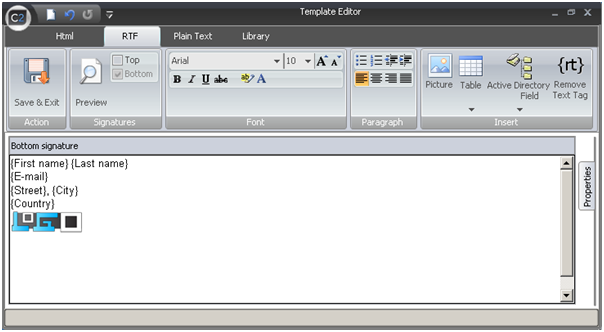
Over 100 professional email signatures, banners, labels and disclaimer images have been made accessible for free in a built-in library of CodeTwo Exchange Rules Pro. What does it mean? It means simply that making beautiful and modern branding of your corporate electronic correspondence is now a matter of a few clicks and can be real fun! Once you have created your rule in the administration panel of CodeTwo's program, there are only 3 steps to make a professional email signature that can be automatically attached to all messages sent from your company's mailboxes. In addition, it can contain names, contact details and even individual photos of each employee pulled from Active Directory. Step 1: Find a proper action Go to the Actions tab, click Add in the List of Actions and choose Insert disclaimer/signature. On the right hand side you can see two buttons: Options (a quick, handy function to define a position of your disclaimer - top, bottom, left or right) and the Edit template... . Click on the Edit template... button to open the Template Editor. Step 2: Check-out the new library full of ideas The Template Editor that facilitates CodeTwo Exchange Rules Pro has everything you need: it simple to use, rich in functions and contains an impressive library of fancy visual propositions prepared for your own use to help you establish your new, stylish e-mail branding. So even if you have to make everything from scratch and your mind goes blank as you do not know what to start with, a whole palette of lovely inspirations is already there. Simply click on the Library tab and go quickly through the list of various designs to select the one that best suits your needs (see some of the examples below). Step 3: Use Template Editor to make your magic! Ok, you have chosen something that looks pretty cool, but there are still no names of your company, employees' phone numbers, e-mail addresses etc. Do not worry. Each of signatures contains Dynamic Fields that pull data, such as names, contact details and even photos from your Active Directory. They are marked with brackets: { } and can be easily edited in HTML, RTF or Plain Text preview. See below: And that is it! The program will automatically add a customized signature to all e-mails sent by your company members specified in the Conditions tab. In the latest 1.2. version, you can not only pull contact details kept in Active Directory to your signatures, but even add senders' photographs. If want to know more about creating and modifying your email signatures, there is an extensive knowledge base available on CodeTwo's website, in user's manual and other blog posts. Learn more about making e-mail signatures and disclaimers in CodeTwo Exchange Rules Pro
See other features of CodeTwo Exchange Rules Pro
Download a trial version and test it in your environment
Our newest program CodeTwo Exchange Rules Pro is getting more and more of your attention, so we've decided to post practical tips regarding its functions. We want to tell you about some of the useful features this powerful email management software offers, and which may be not obvious for first-time users. Let's focus today on Active Directory dynamic fields. What are dynamic fields? They are placeholders of our personalized email signature template referring to particular information, such as message sender details, images, message subject or even current date. So why do we call them 'dynamic'? It's because they dynamically retrieve data from Active Directory, from a location on the hard drive (images) or from message properties.