Since we do a lot of applications for Outlook, we also use them in our everyday work. We use CodeTwo Public Folders and CodeTwo Exchange Rules. Some time ago we created a program for ultra-fast and automatic email account configuration. We love this app so much that we decided to share it with you! We have just released a free tool called CodeTwo Outlook AutoConfig. It’s an amazingly easy application that automatically configures an email account in Microsoft Outlook, Outlook Express, Windows Mail or Windows Live Mail. If you want to use any of the above-mentioned email clients, you no longer need to know any technical details like SMTP and POP3 addresses, mail server port numbers, encryption methods, etc. Using CodeTwo Outlook AutoConfig, you can create your email account in split second only by providing your email address.
Download CodeTwo Outlook AutoConfig and launch it. Enter your email address – a suggested Display name will appear beneath. Display name is what is shown to recipients instead of your full email address. Naturally, you can change the display name to anything you want, e.g. your name and surname.
Select your email client and click Create account. Note! If your mail client is currently opened, you will need to restart it for the changes to take effect.
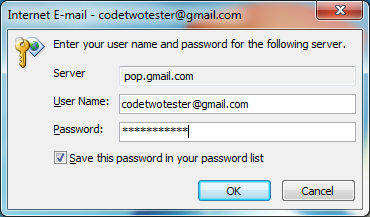
Your email program will ask for your password (the one you always use for this particular email address). Enter your password (make sure it is correct), check if Save this password in your password list is selected and click OK.
This is all you need to do to create your email account in Outlook, Outlook Express, Windows Mail and Windows Live Mail. Don’t wait and download CodeTwo Outlook AutoConfig – it’s easy-to-use, it’s quick, it’s free!
Szymon is the CEO of CodeTwo and the driving force behind the company’s consistent growth. He is well known among IT and business professionals worldwide, with 180,000+ followers on LinkedIn.
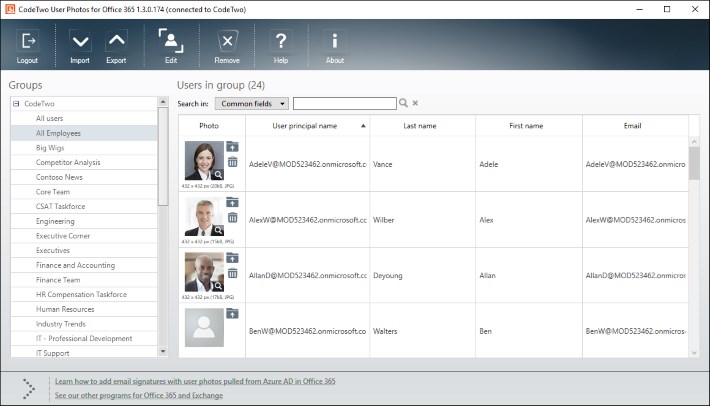
Many of you already know and use our freeware CodeTwo Active Directory Photos – a smart tool designed to ease user photo management in Active Directory.
Starting October 31, 2018, the support for Transport Layer Security (TLS) versions 1.0 and 1.1 is discontinued in Office 365. This means that TLS 1.0 and 1.1 will still work, but Microsoft will not provide support in case of connection/compatibility issues. For this reason, we have updated all our software that connects to or otherwise interacts with Office 365. To avoid possible issues in the future, we recommend that you update your software to the latest version.
It is time for new Outlook freeware from CodeTwo! We have already been giving away smart apps that remind about missing attachments, export PST files to Excel, unblock files such as .exe or .reg, sync Outlook mails, tasks, calendars or categories between computers or even automatically configure your e-mail account in Outlook, and many more... Now we are pleased to announce that yet another totally new, practical Outlook add-on has been released and offered to all of you for free. Its concept has appeared in our office based on our own every-day experience when sending bunch of e-mails to other staff members, supervisors or clients. This time the idea concerns group messages, when we have many recipients specified in the To: or Cc: field. It was happening to many of us to hastily press the Reply instead of the Reply to All button while responding to such e-mails. It is sometimes very troublesome and embarrassing and we definitely do not want this to happen when exchanging a business group correspondence. Fortunately, the new tool called CodeTwo Outlook Reply All Reminder helps Outlook users to prevent such situations. It is a user-friendly application which does not require any configuration. After you install it, you can be sure that next time you click Reply, when replying to a group correspondence, the plugin will trigger a notification window informing that your message will be received by one person only (the original sender of the e-mail that you are replying to). The program will ask you if you want to send the Reply to All instead, what you can confirm by clicking an appropriate button, as shown below: Want it already? Nothing easier, just go to CodeTwo Outlook Reply All Reminder's website and download it for free. :) CodeTwo Outlook Reply All Reminder - download page
All Outlook add-ons from CodeTwo
Comments
michal says:
You might ask, why did we create such a program if there is a similar functionality built into Microsoft Outlook already?
The e-mail account auto-configuration functionality in Outlook is primarily designed to work with Exchange Server accounts and it doesn’t work as expected with POP3/SMTP service providers. For example try to auto-configure your @gmail account in Outlook. First of all, you will wait for about 2-3 minutes before Outlook finishes its job, and after that you’ll see that in result you receive an IMAP account configured! I didn’t find a way to force Outlook to create a POP3/SMTP account.
Outlook AutoConfig properly configures my e-mail accounts in split second, so I’ve got no time to dig in what’s wrong with Outlook built-in function.
CodeTwo Outlook AutoConfig will automatically configure your email account in Outlook, Outlook Express, Windows Mail and Windows Live Mail. Normally you have to know pop3 and smtp addresses and port numbers of your email account and have to add it manually. With this program, you only need to provide your email address and the remaining part is filled in automatically – so you don’t need to know any technical details concerning your email account. It is perfect for NON-IT-GEEKS and for Geeks who have multiple email accounts and have just moved to a new system.
 Since we do a lot of applications for Outlook, we also use them in our everyday work. We use CodeTwo Public Folders and CodeTwo Exchange Rules. Some time ago we created a program for ultra-fast and automatic email account configuration. We love this app so much that we decided to share it with you! We have just released a free tool called CodeTwo Outlook AutoConfig. It’s an amazingly easy application that automatically configures an email account in Microsoft Outlook, Outlook Express, Windows Mail or Windows Live Mail. If you want to use any of the above-mentioned email clients, you no longer need to know any technical details like SMTP and POP3 addresses, mail server port numbers, encryption methods, etc. Using CodeTwo Outlook AutoConfig, you can create your email account in split second only by providing your email address.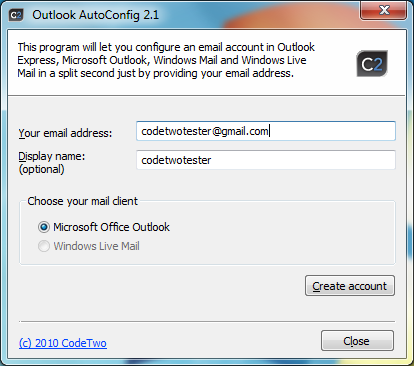




You might ask, why did we create such a program if there is a similar functionality built into Microsoft Outlook already?
The e-mail account auto-configuration functionality in Outlook is primarily designed to work with Exchange Server accounts and it doesn’t work as expected with POP3/SMTP service providers. For example try to auto-configure your @gmail account in Outlook. First of all, you will wait for about 2-3 minutes before Outlook finishes its job, and after that you’ll see that in result you receive an IMAP account configured! I didn’t find a way to force Outlook to create a POP3/SMTP account.
Outlook AutoConfig properly configures my e-mail accounts in split second, so I’ve got no time to dig in what’s wrong with Outlook built-in function.
@Tom
CodeTwo Outlook AutoConfig will automatically configure your email account in Outlook, Outlook Express, Windows Mail and Windows Live Mail. Normally you have to know pop3 and smtp addresses and port numbers of your email account and have to add it manually. With this program, you only need to provide your email address and the remaining part is filled in automatically – so you don’t need to know any technical details concerning your email account. It is perfect for NON-IT-GEEKS and for Geeks who have multiple email accounts and have just moved to a new system.
Hi Simon and all – What problem does it solve? Not trying to be negative – just trying to understand why you wrote it. Thanks!
Thanks guys. Glad you like it!
It really safes time. Especially useful when you move to a new system and have a few email accounts.
Thanks Code Two! Awesome app!
Finally! It is so sleek with gmail. can’t believe what I am seeing.
hi,
great tool. it’s a savior for millions outlook and windows mail users. thank you!
Thanks for this tip! I created my account in Outlook Express!